Subject
Applies to: Admin
Purpose: This article explains how to change the lead owner on one or more leads
Location in Ricochet: Lead Management Page
Description
The instructions in this article require Administrator permission
Use this article to learn how Admin/Branch Manager users can update lead ownership from the Lead Management page using Mass Actions. The steps include selecting leads, assigning or unassigning owners, optionally transferring existing tasks, and processing bulk updates. If the Assign To option is not visible, please contact Support, as this may be related to permissions or account configuration.
Resolution
Optional: View the interactive tutorial for this process:
Click here to open the step-by-step tutorial in a new tab
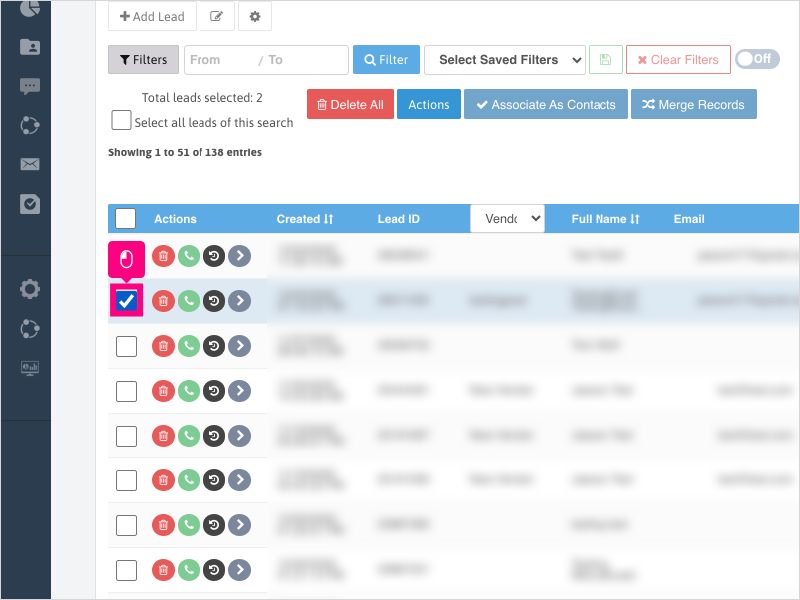
Non-Administrators do not have the access to follow these instructions and should open a ticket.1. To change the owner on leads, filter the lead management page by the user you want to change, then click the checkbox for one or more leads' checkbox on the left side
2. Click Actions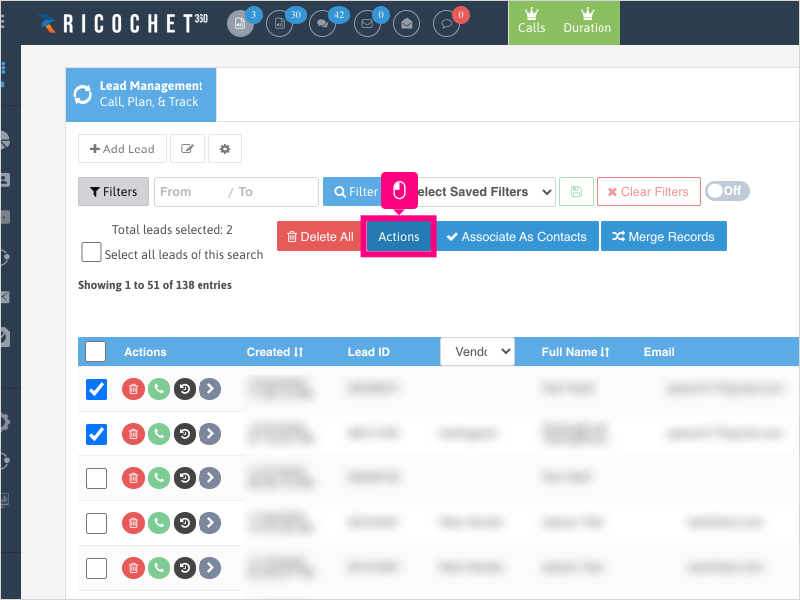
3. Click the Users area next to "Assign to" and select the user you want to change the lead owner to.
You can also unassign the lead owner from the leads by choosing "Unassigned"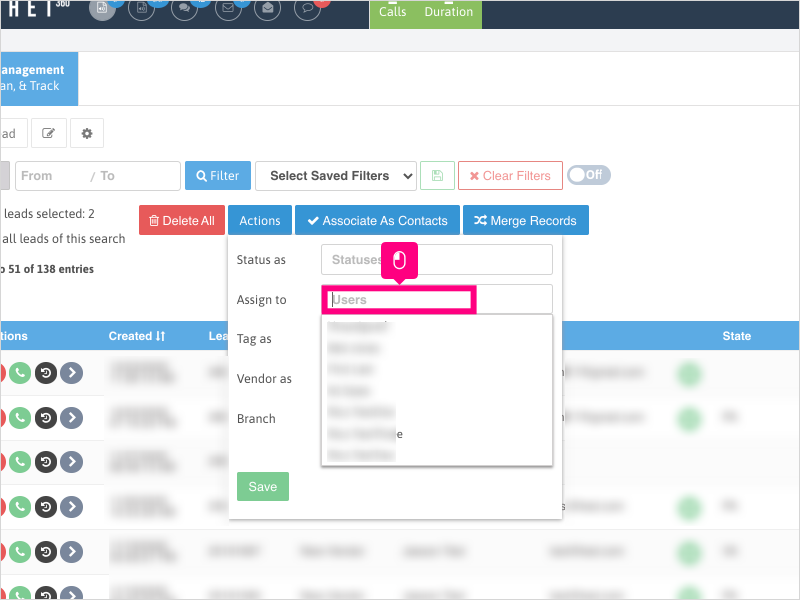
4. Click the checkbox to transfer existing tasks to the new lead owner (if one is selected)
Note: It is not required but recommended. 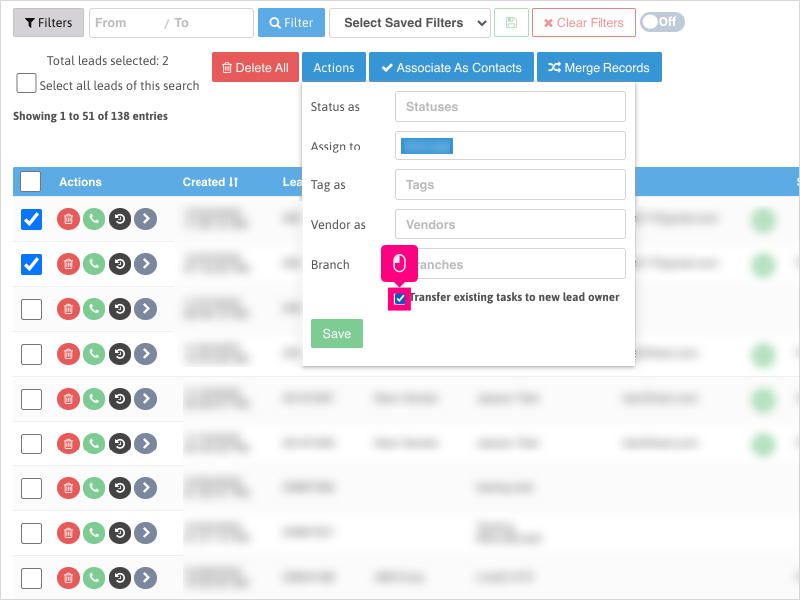
5. Click Save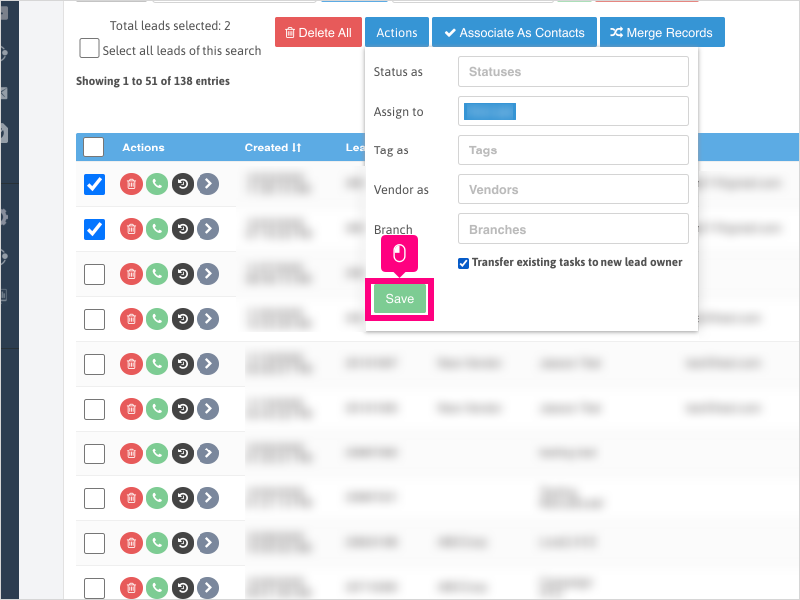
6. Click Ok to apply the changes to the leads.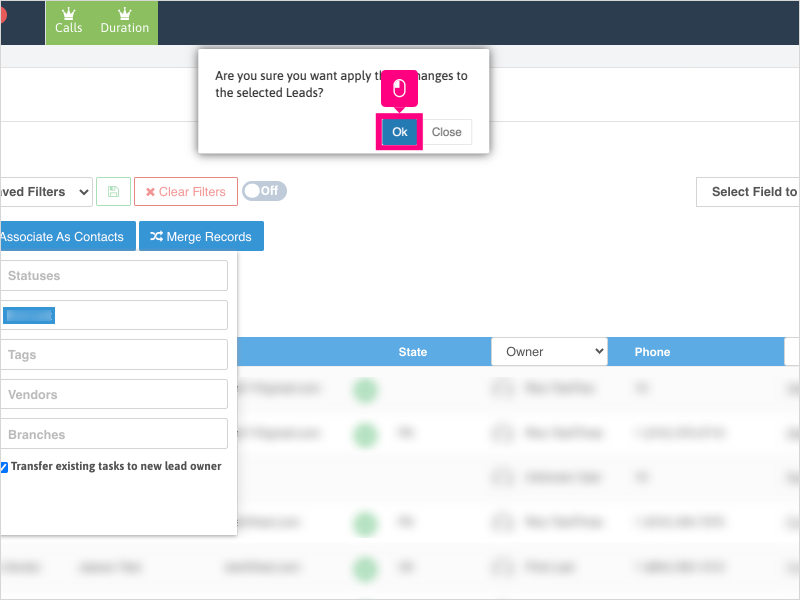
7. If you wish to make changes to more than 50 leads at a time, the process will be put on queue.
To choose more than 50, filter your leads as desired, then click the checkbox at the top row to select the first 50 leads.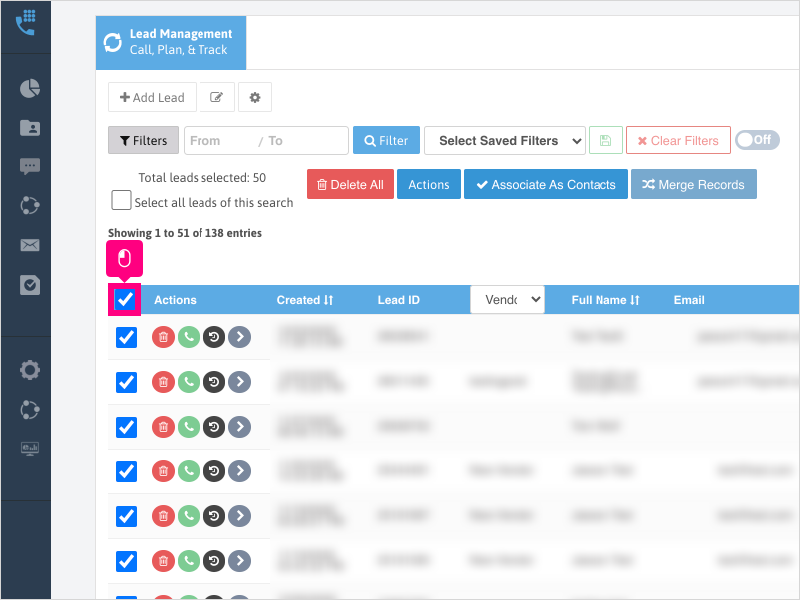
8. Click the checkbox above it to select all the leads in the search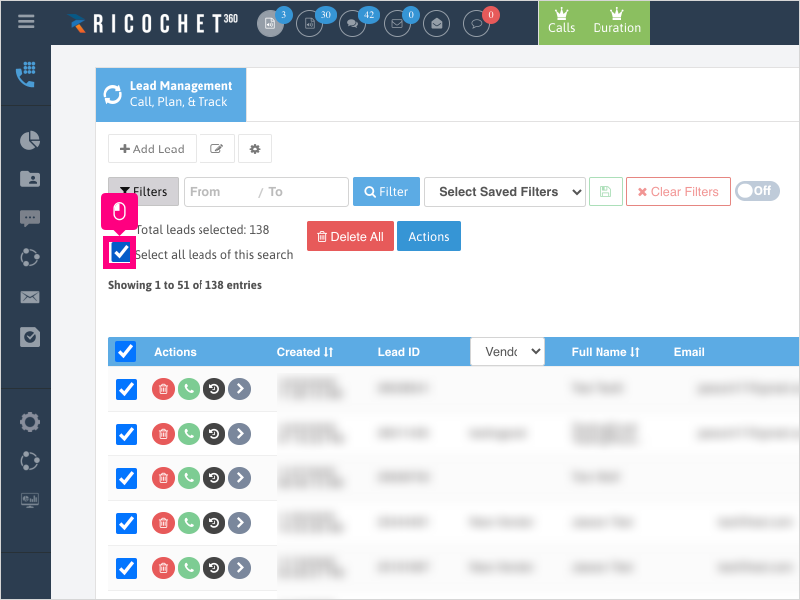
9. Click Actions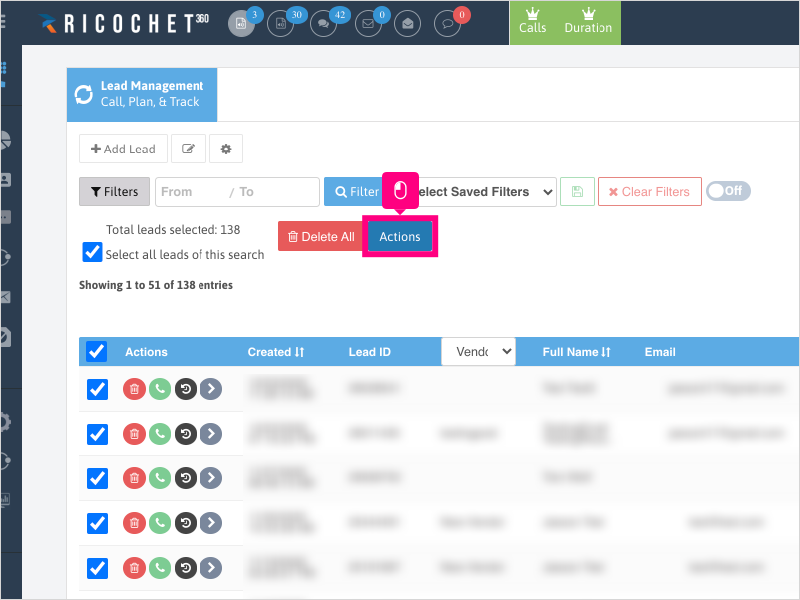
10. Click the Users area next to "Assign to" and select the user you want to change the lead owner to.
You can also unassign the lead owner from the leads by choosing "Unassigned"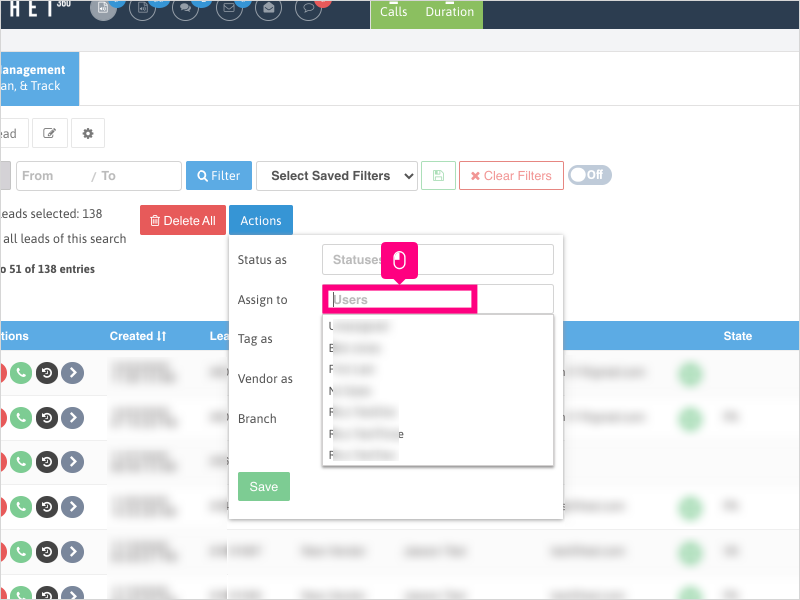
11. Click the checkbox to transfer existing tasks to the new lead owner (if one is selected)
Note: It is not required but recommended.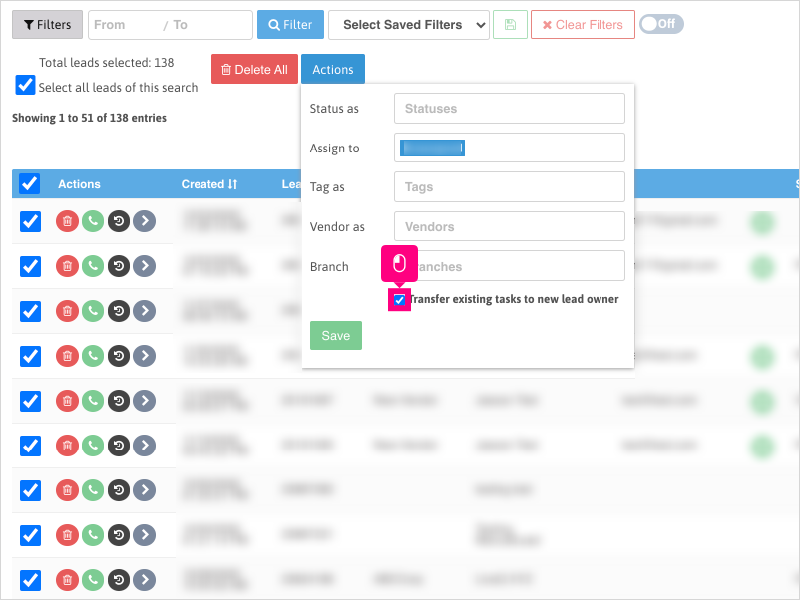
12. Click Save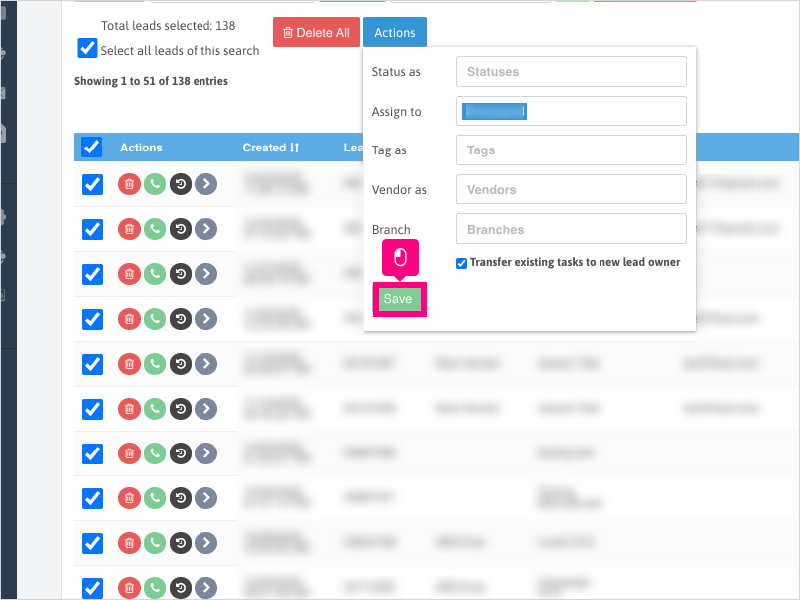
13. Click Put On Queue to put the mass action on the queue to be process.
You'll receive an email once the process is completed.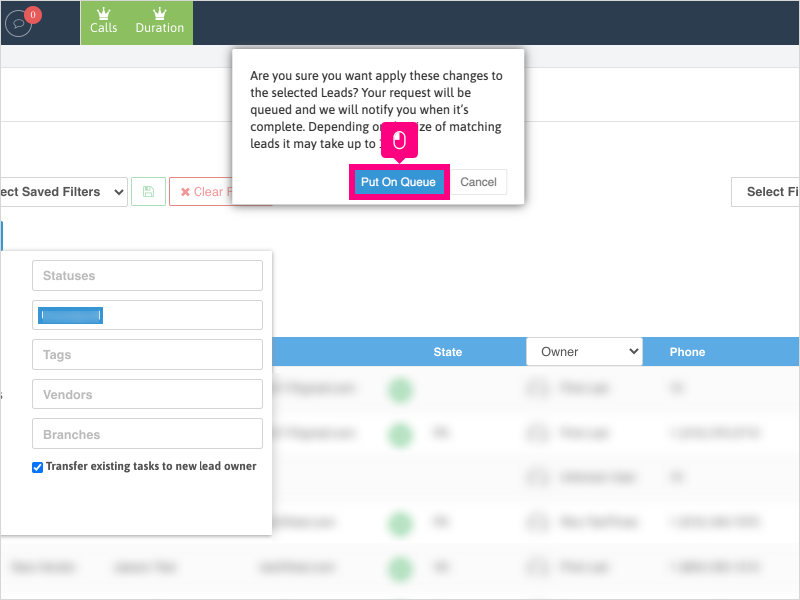
Was this article helpful?
That’s Great!
Thank you for your feedback
Sorry! We couldn't be helpful
Thank you for your feedback
Feedback sent
We appreciate your effort and will try to fix the article