Subject
Applies to: All users
Purpose: Explain how users can add, edit, and delete notes on a lead directly from the Lead Management Page using Quick Actions.
Location in Ricochet: Lead Management
Description
This article outlines the steps for adding notes to a lead from the Lead Management Page, including how to create a new note, edit an existing note, or delete a note using the Quick Actions menu.
Resolution
Optional: View the interactive tutorial for this process:
Click here to open the step-by-step tutorial in a new tab
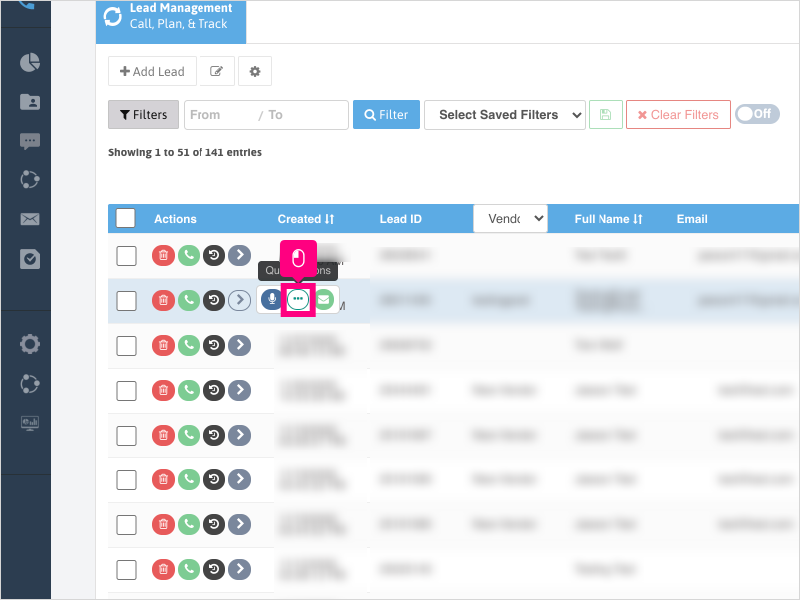
1. To add a note to a lead from the Lead Management Page, first, scroll to the lead you want to add a note, hover over the arrow and click on Quick Actions
2. Click into the note area and type your note.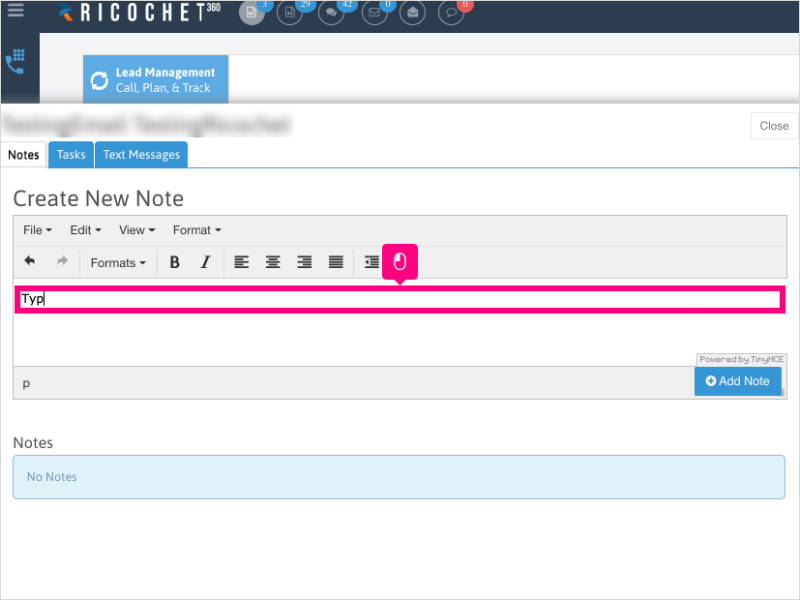
3. Click Add Note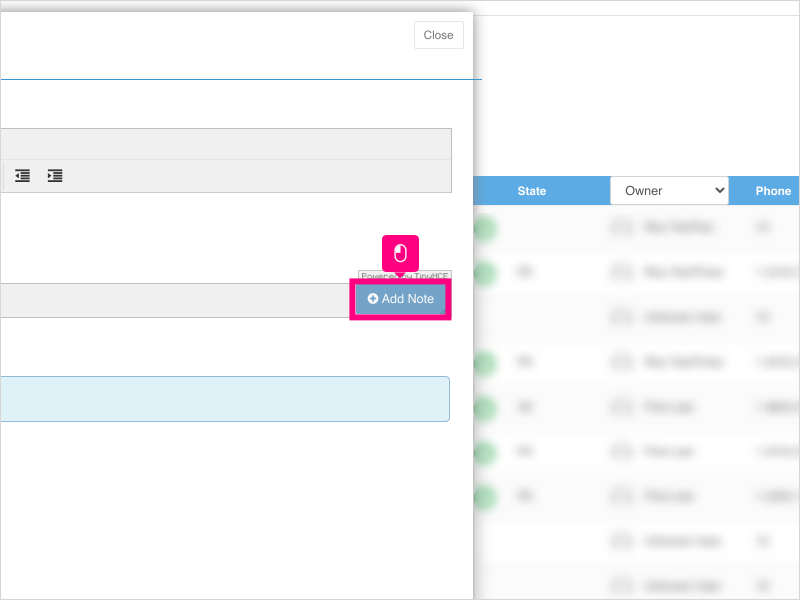
4. If you need to edit a note, click the Edit button and make your updates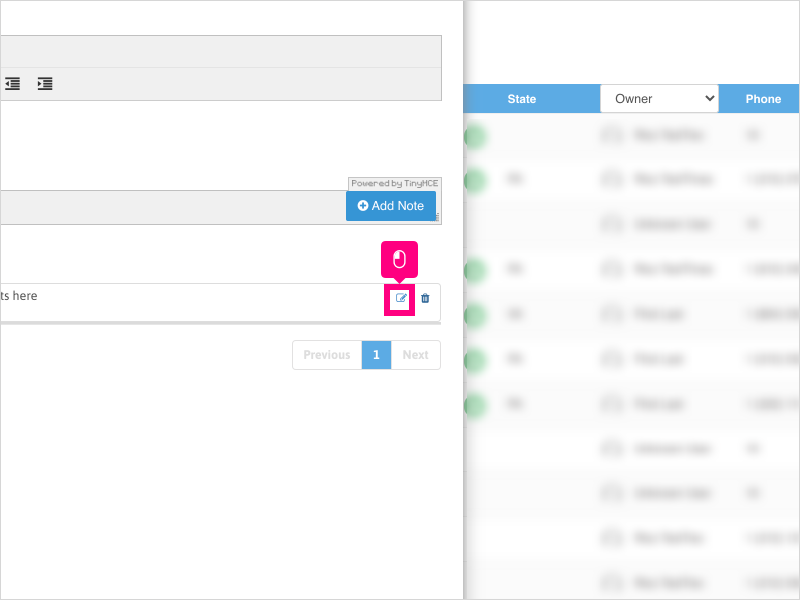
5. If you need to delete a note, click the Delete button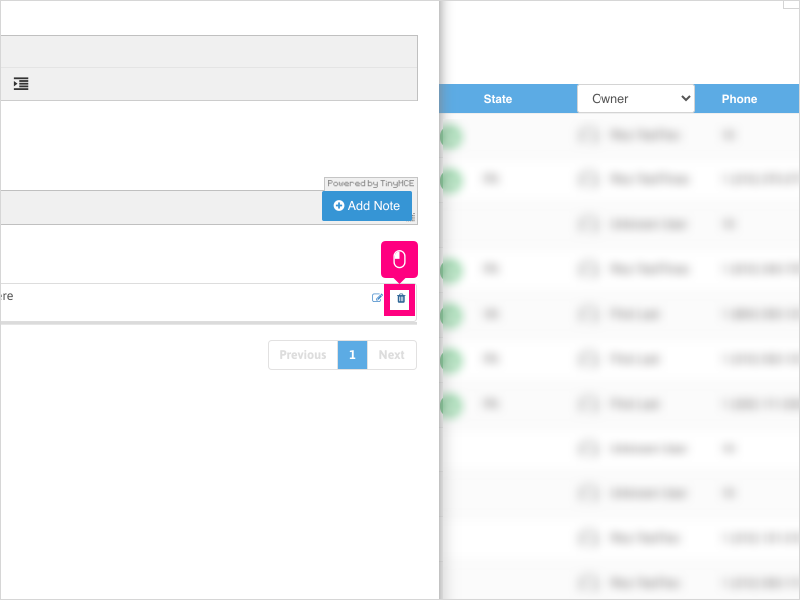
6. Click Ok to confirm deleting the note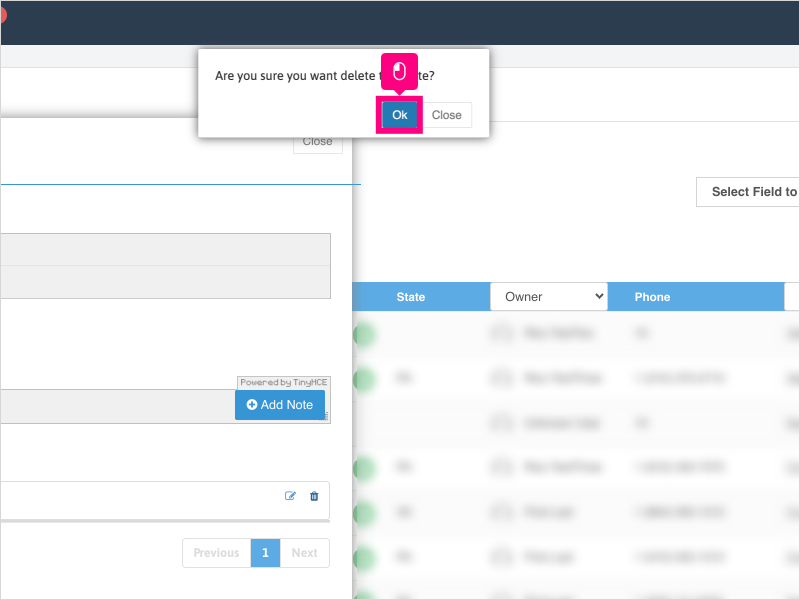
Was this article helpful?
That’s Great!
Thank you for your feedback
Sorry! We couldn't be helpful
Thank you for your feedback
Feedback sent
We appreciate your effort and will try to fix the article