Subject
Applies to: All users
Purpose: To explain how users can create, edit, and manage tasks directly from the Lead Management Page, including setting task details, reminders, assignments, and notifications without opening the full lead record.
Location in Ricochet: Lead Management
Description
This article walks through the process of adding and updating tasks from the Lead Management Page using Quick Actions. It covers task creation, priority and assignment options, reminder settings, calendar and email notifications, editing existing tasks, and returning to the lead list after completion.
Resolution
Optional: View the interactive tutorial for this process:
Click here to open the step-by-step tutorial in a new tab
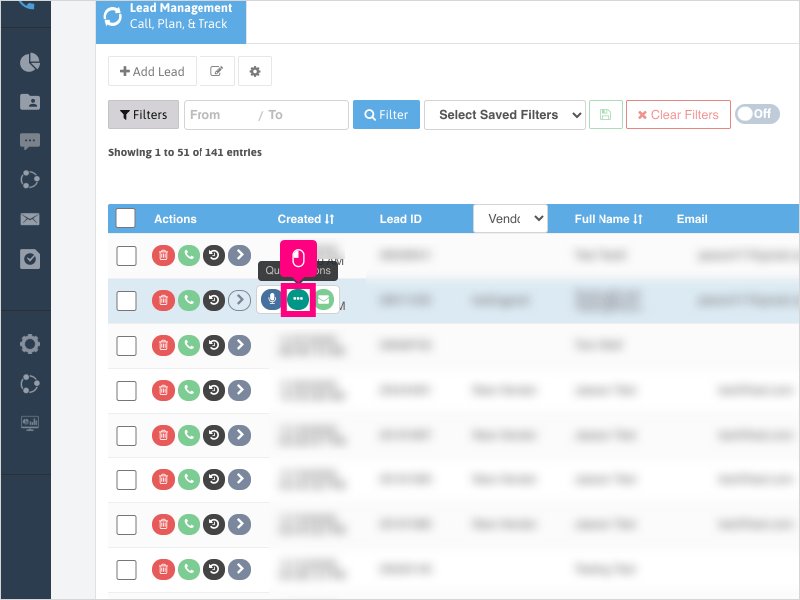
1. To add or update a task on a lead from the Lead Management Page, first, scroll to the lead you want to add or update a task, hover over the arrow and click on Quick Actions
2. Click Tasks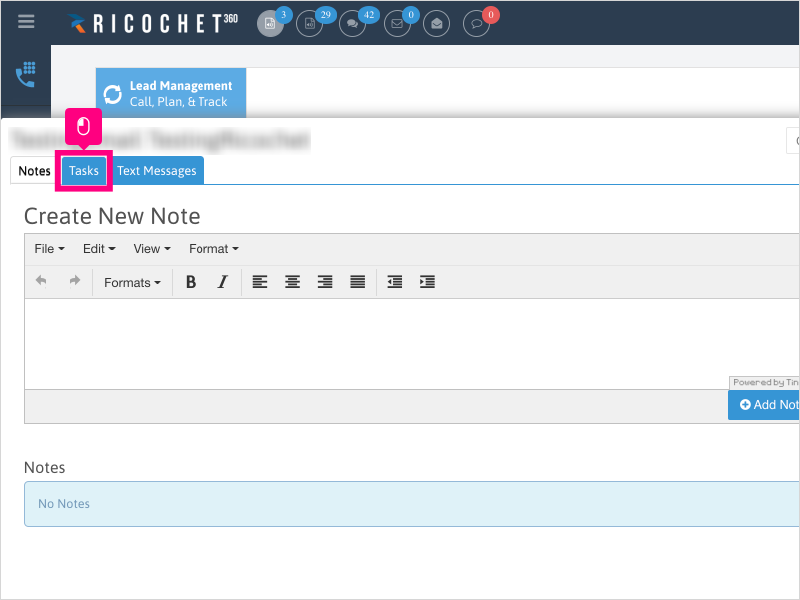
3. Click inside the Title area and type in the title of your task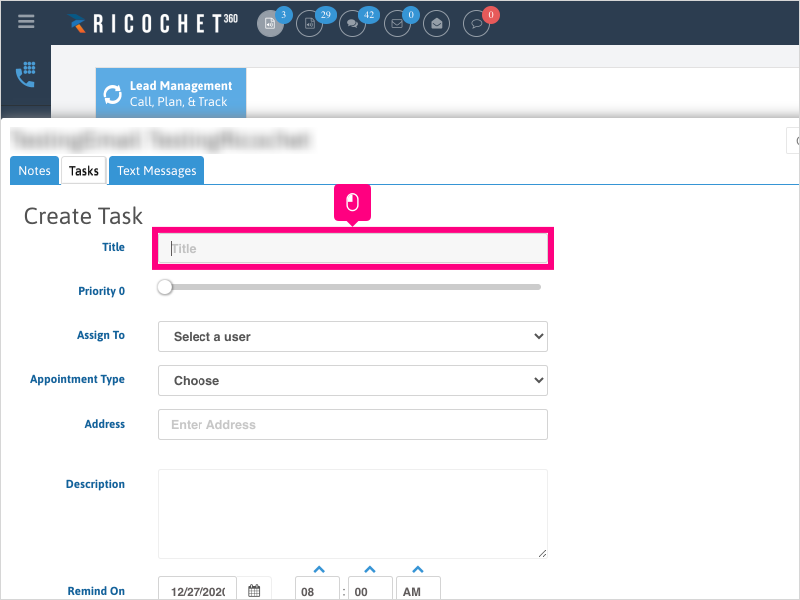
4. Click the priority slider and drag it to the desired priority for the task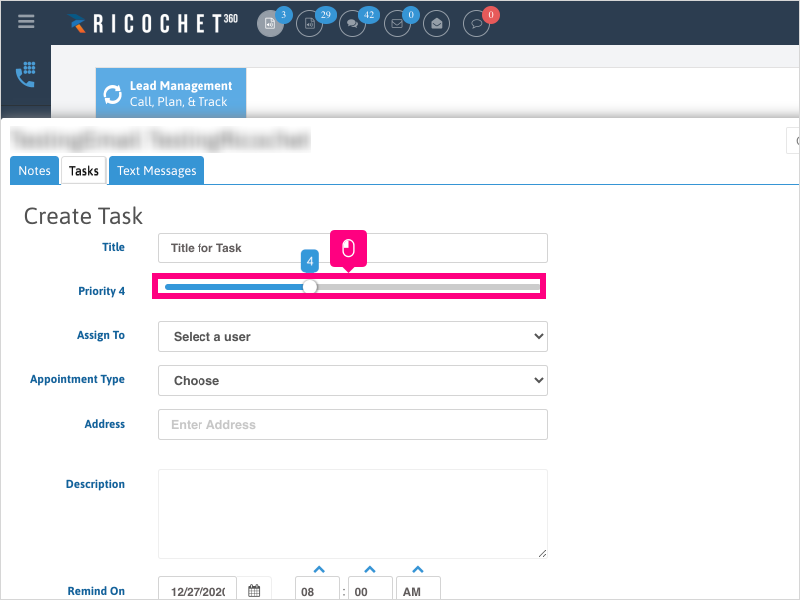
5. Click Select a user to assign the task to another user, if applicable.
Note: Not all systems will show this dropdown.
If no agent is selected, the agent who is creating the task will be the task owner.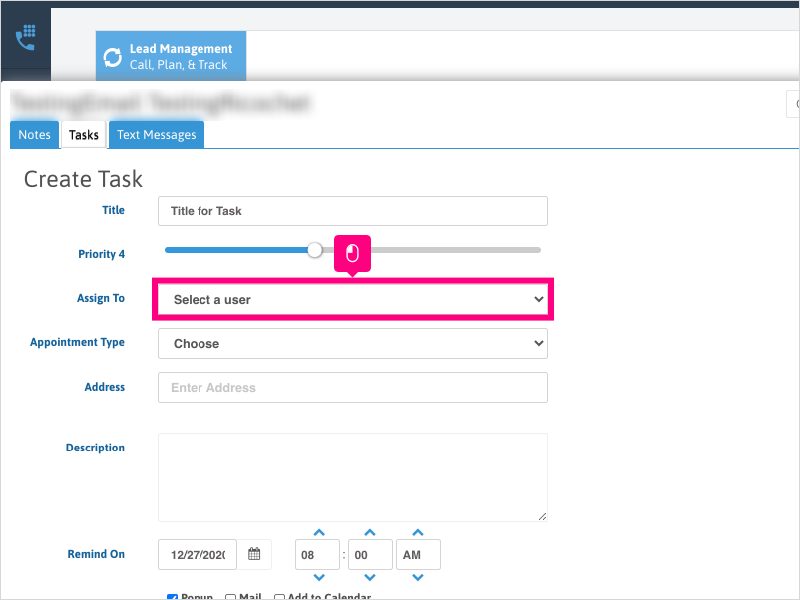
6. If you have Appointment Types enabled and created in your system, you can choose your appointment type from this dropdown.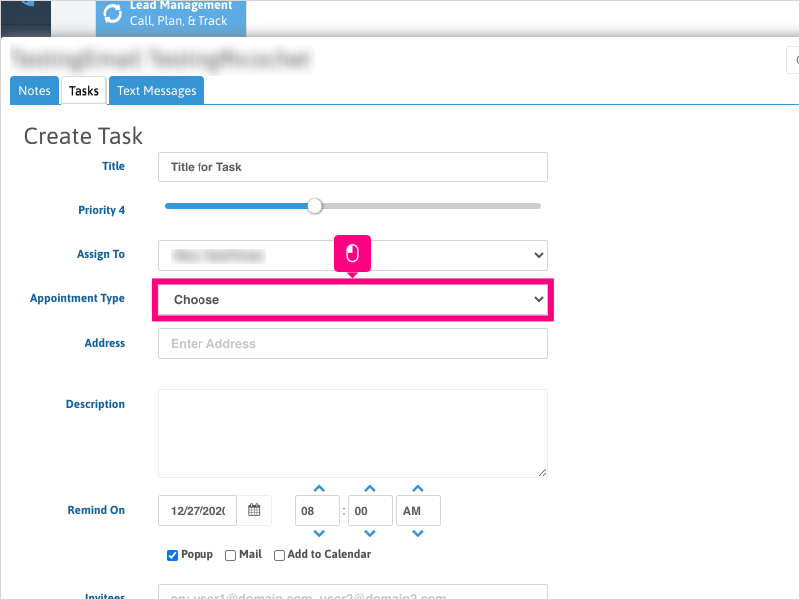
7. Click inside the Description area and type the description of your task.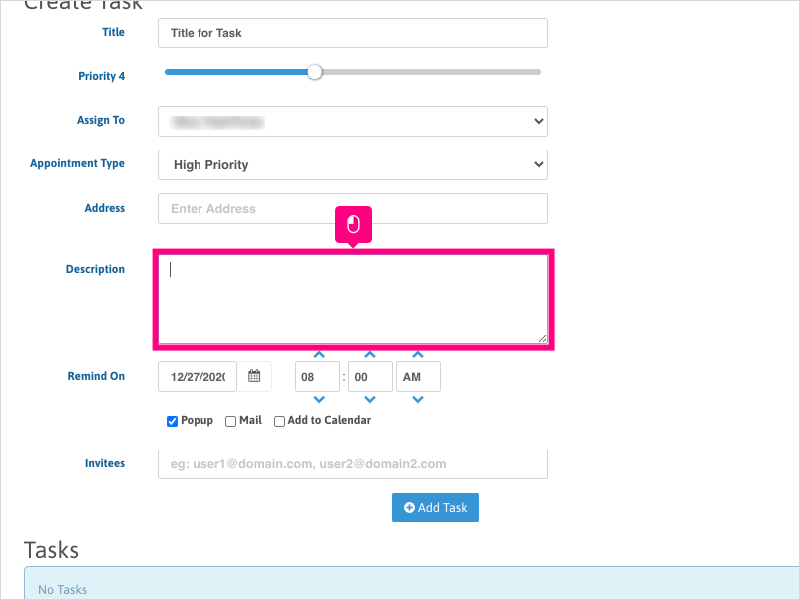
8. Click the calendar icon to choose the date you want to use for this task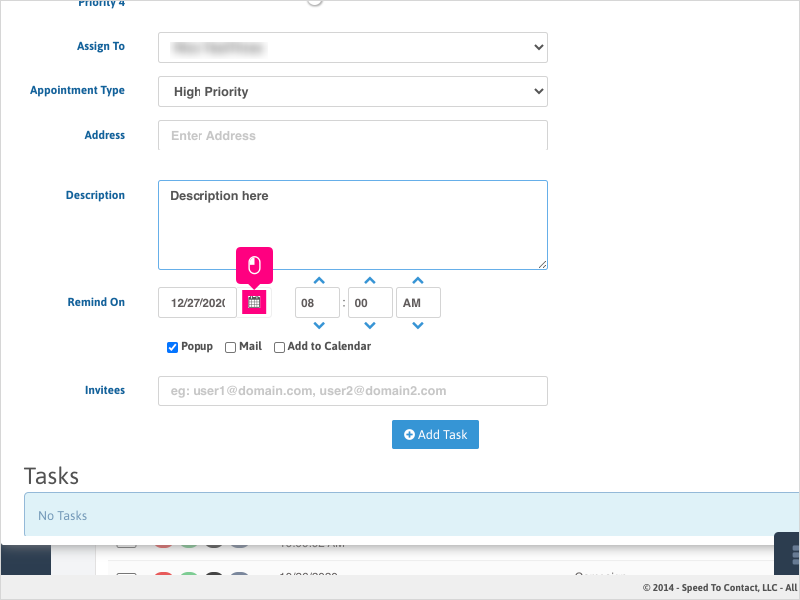
9. Click the up or down arrows to select the time of day for the task reminder to be set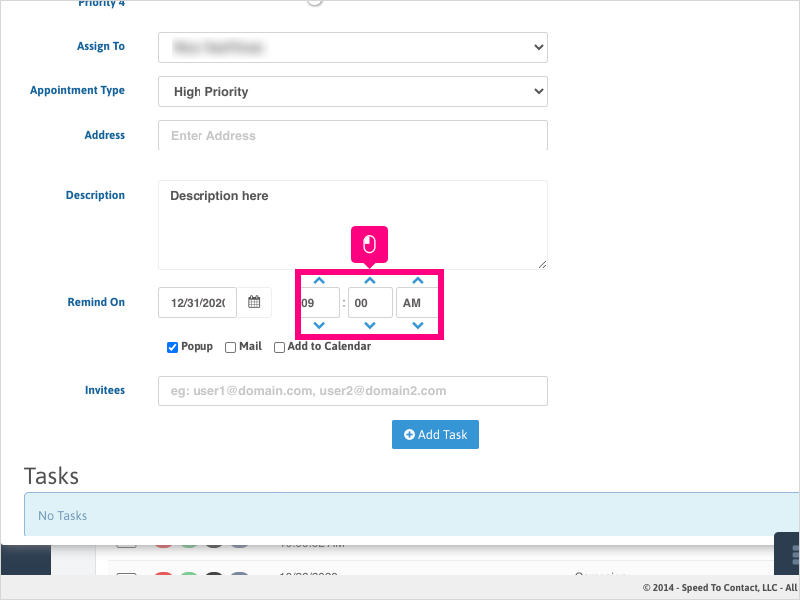
10. Check the "Popup" box if you want the reminder to pop up inside Ricochet.
Leave unchecked if you do not want the popup reminder inside Ricochet.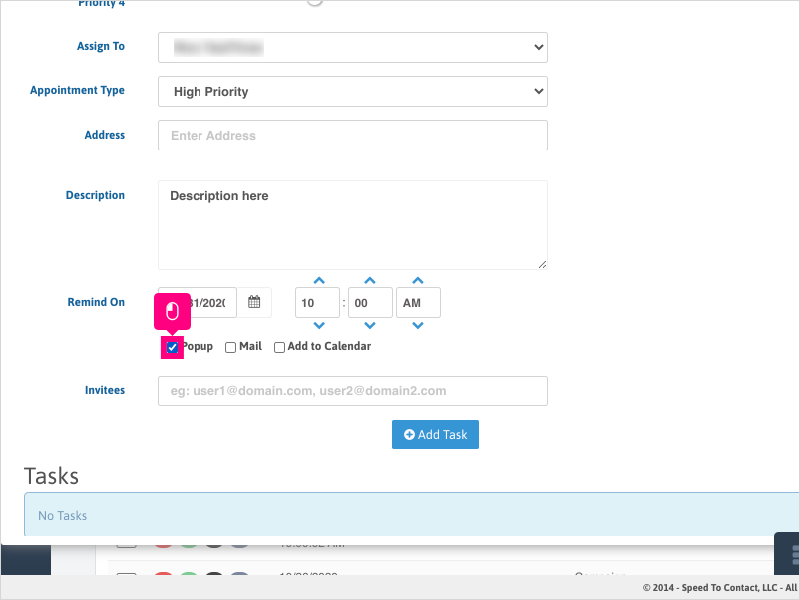
11. Check the "Mail" box if you want the task reminder to be emailed to you.
Leave unchecked if you do not want the task reminder emailed to you.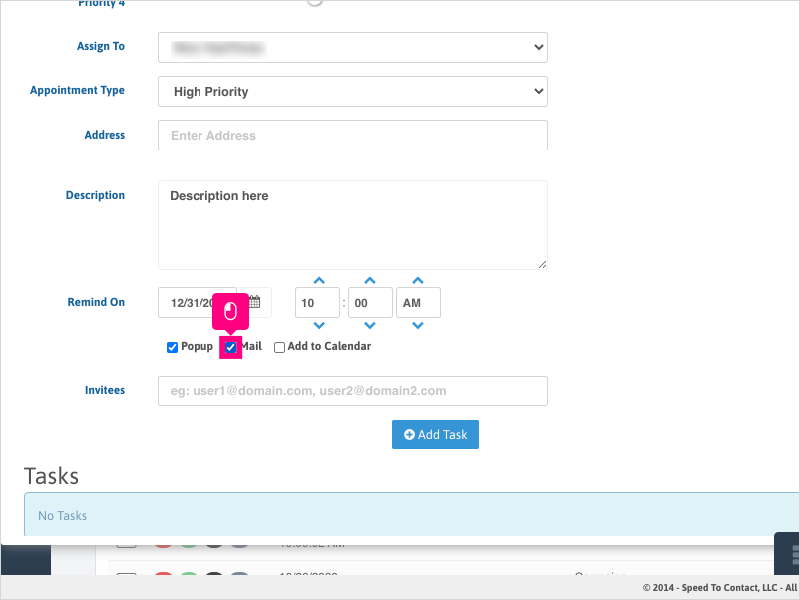
12. Check the "Add to Calendar" box if you have your Google or Outlook calendar integrated and want the reminder to be added to your calendar.
Leave unchecked if you do not want the task reminder added to your calendar.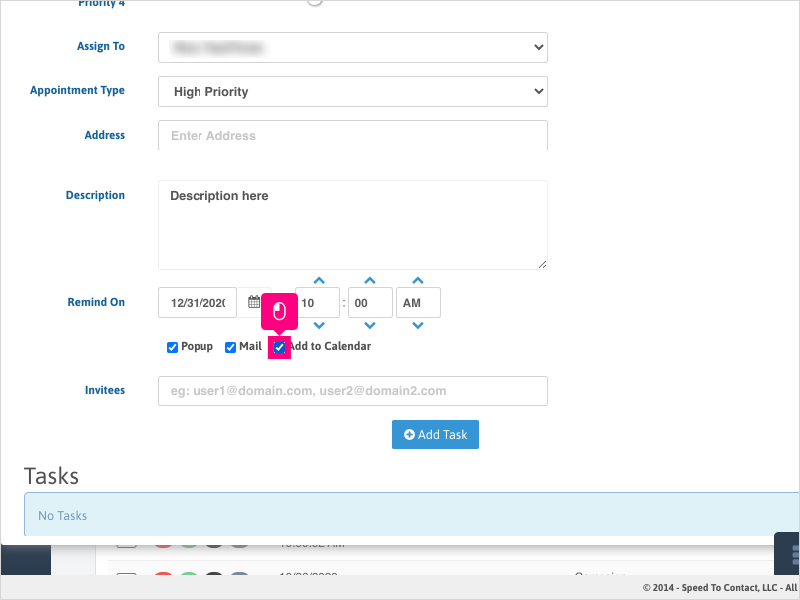
13. Click inside the "Invites" area if you want to send this task reminder to another email address.
You may leave this section empty if you do not want to send the task reminder to others.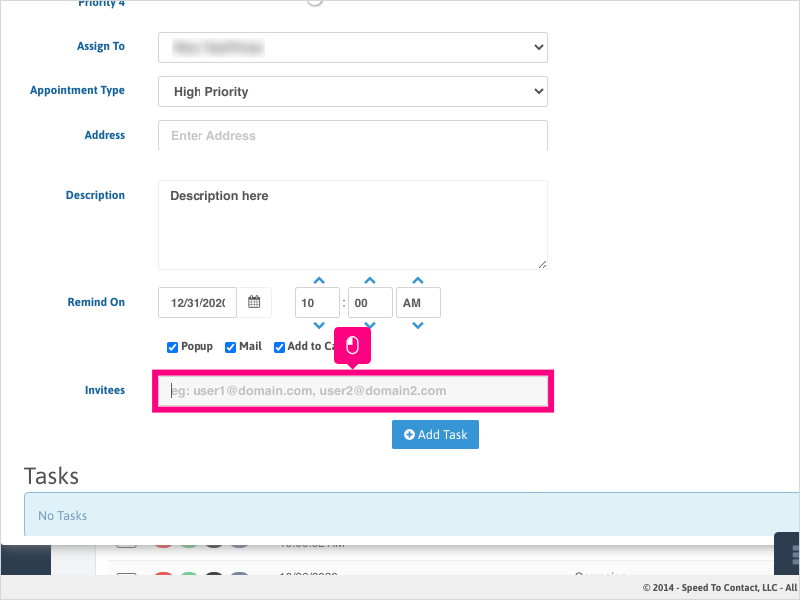
14. When completed, click Add Task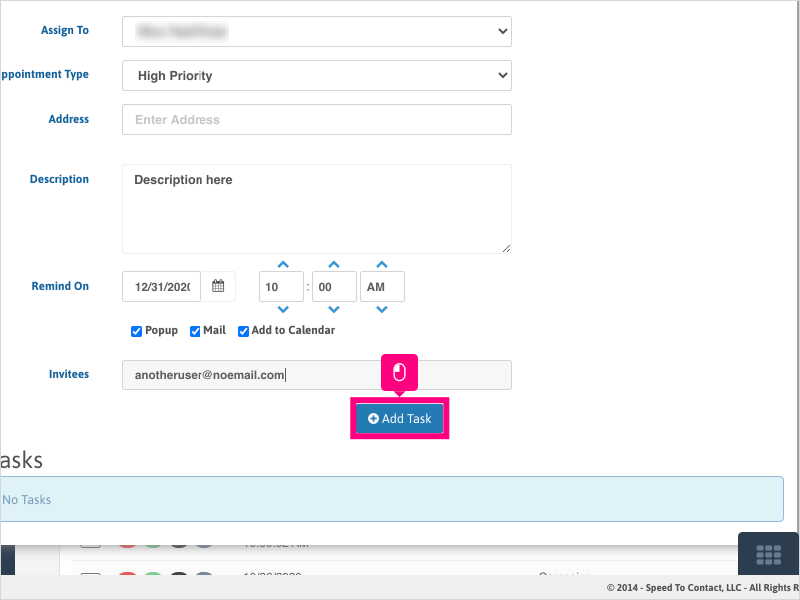
15. If you need to make changes to a task, click the Edit icon on the task you wish to edit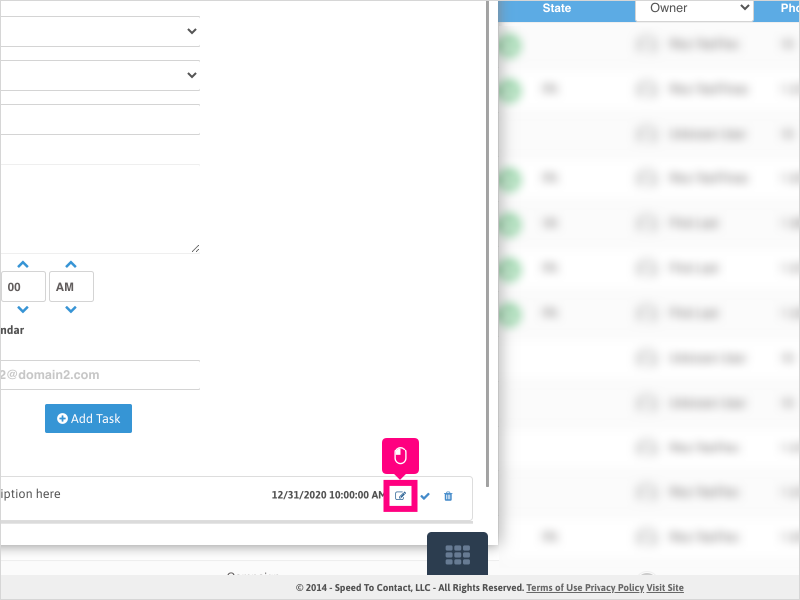
16. Make any adjustments to your task, then click Update Task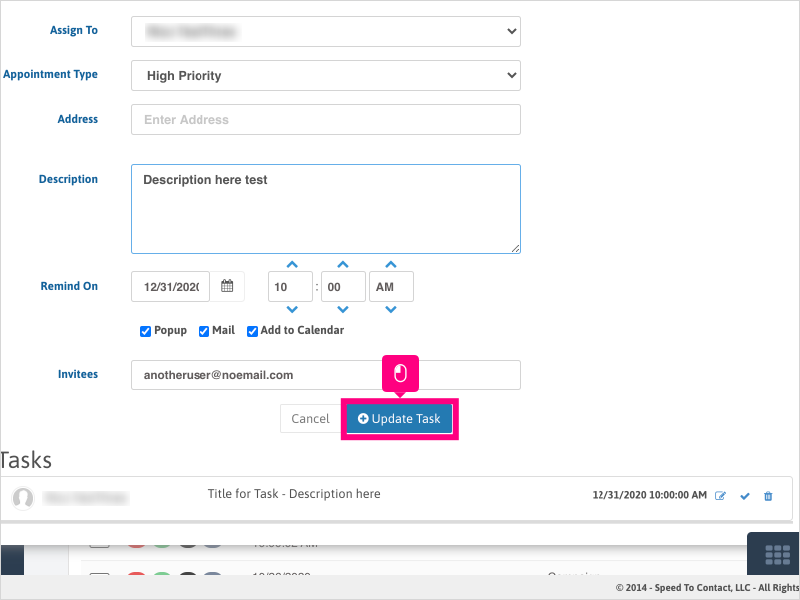
17. Click Close to return to the Lead Management Page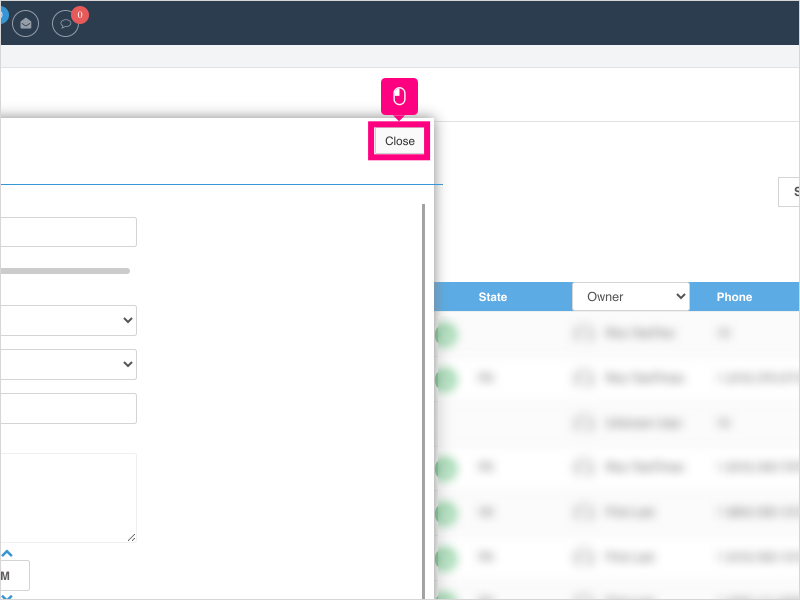
Was this article helpful?
That’s Great!
Thank you for your feedback
Sorry! We couldn't be helpful
Thank you for your feedback
Feedback sent
We appreciate your effort and will try to fix the article