Subject
Applies to: All users
Purpose: Managing Ricochet Shotgun Sound for Automated Outbound Calls
Location in Ricochet: Configuration > User Settings
Description
These instructions describe how to change inbound and outbound call ringtones in Ricochet by navigating to Configuration > User Settings > Call Tone Settings, disabling the default tones, selecting a preloaded ringtone or uploading a custom audio file for each call type, saving the changes, and refreshing the browser to apply the updates.
Resolution
Optional: View the interactive tutorial for this process:
Click here to open the step-by-step tutorial in a new tab
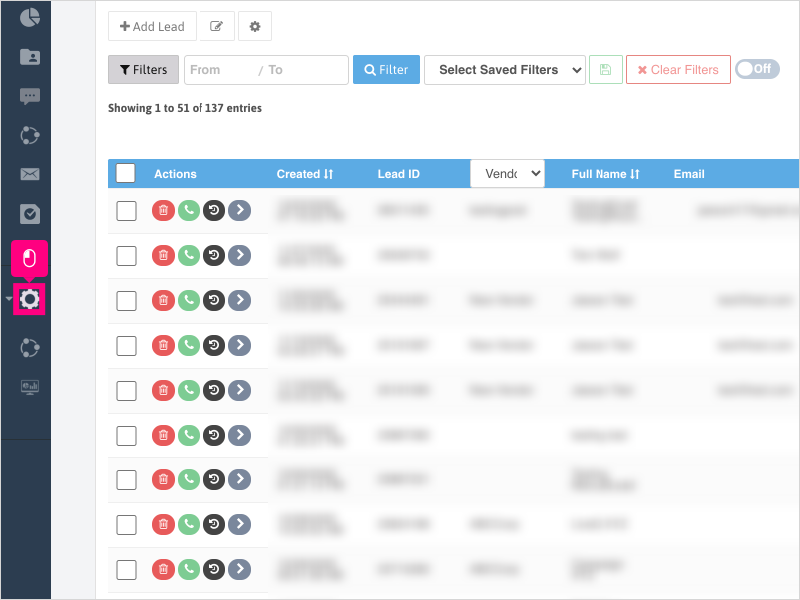
1. To adjust the ring tone for inbound and outbound calling, click Configuration
2. Click User Settings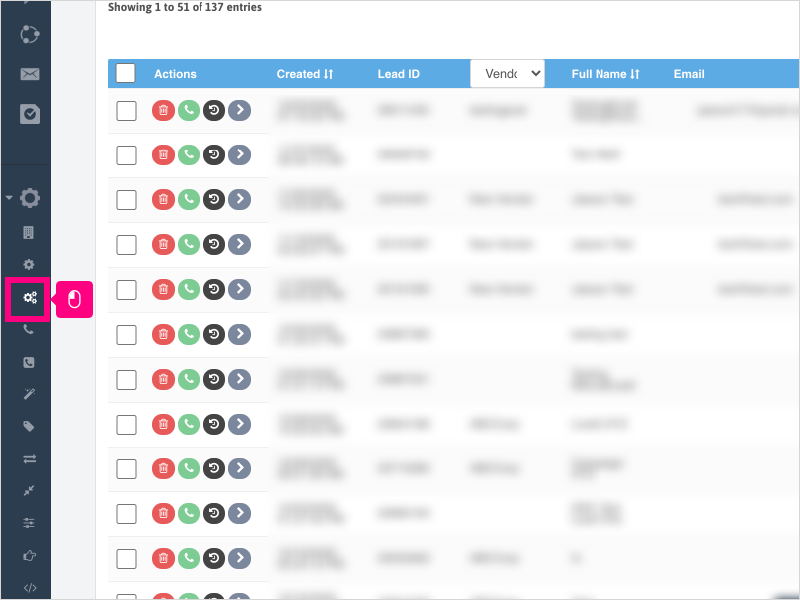
3. Click Call Tone Settings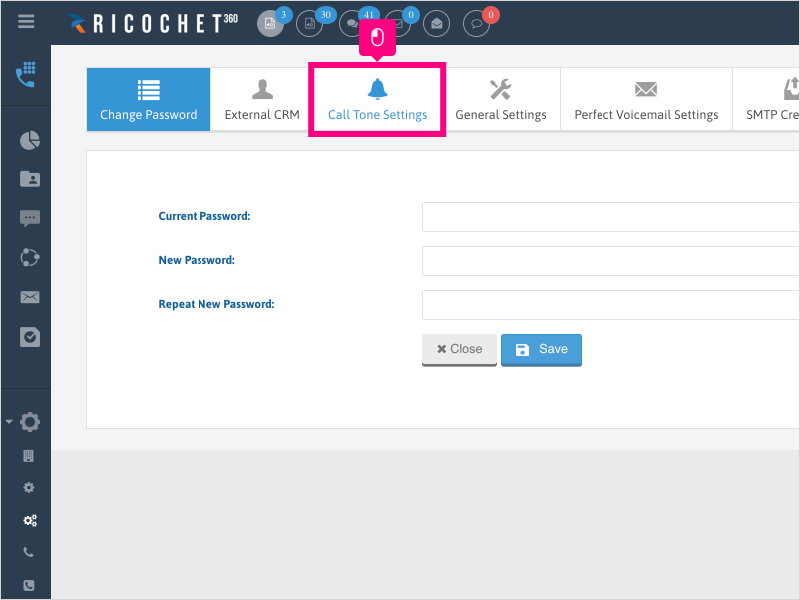
4. Under the Inbound Calls area, uncheck the box for Use Default Call Tone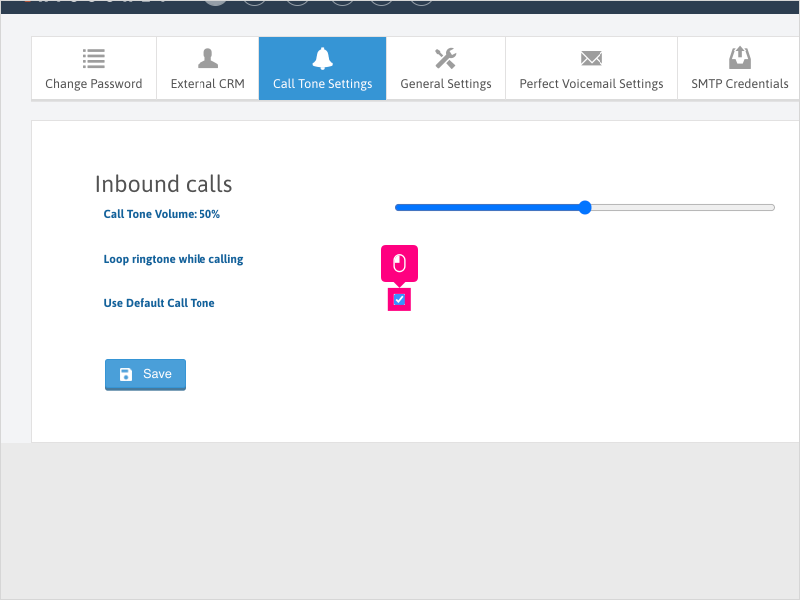
5. Click the dropdown to choose a pre-loaded ringtone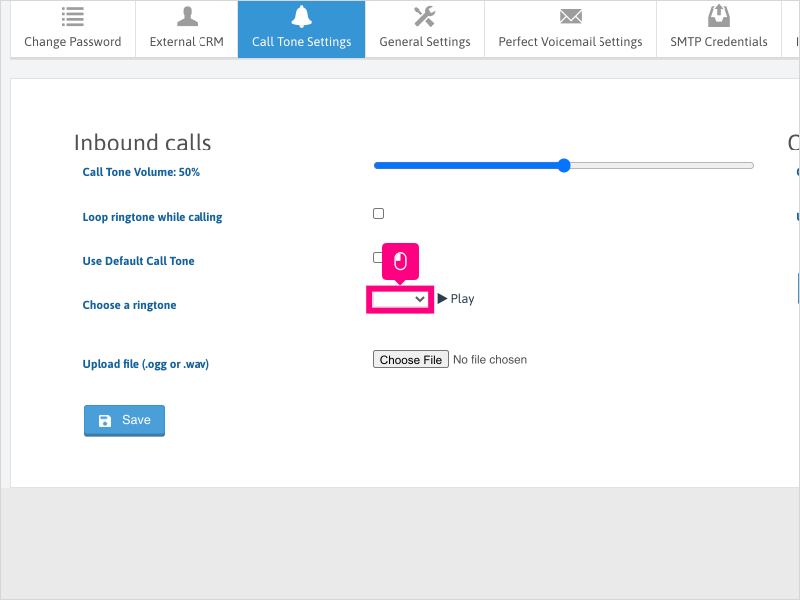
6. For this example we will choose Ring 1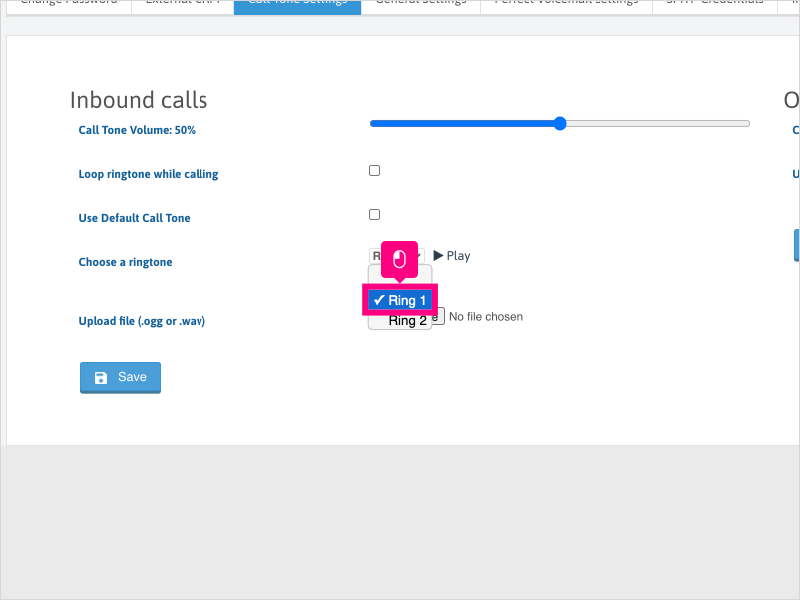
7. If you have a file to upload as your own inbound calls ringtone, click Choose File and upload your file.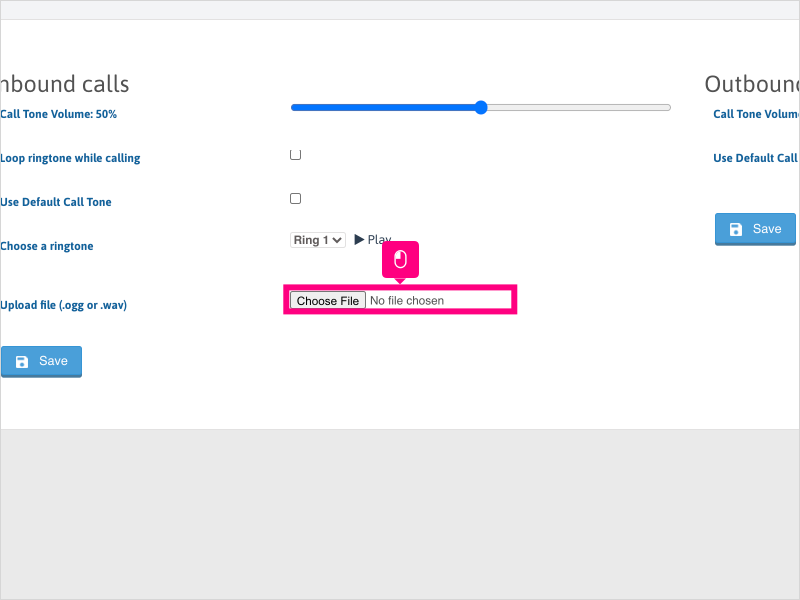
8. Click Save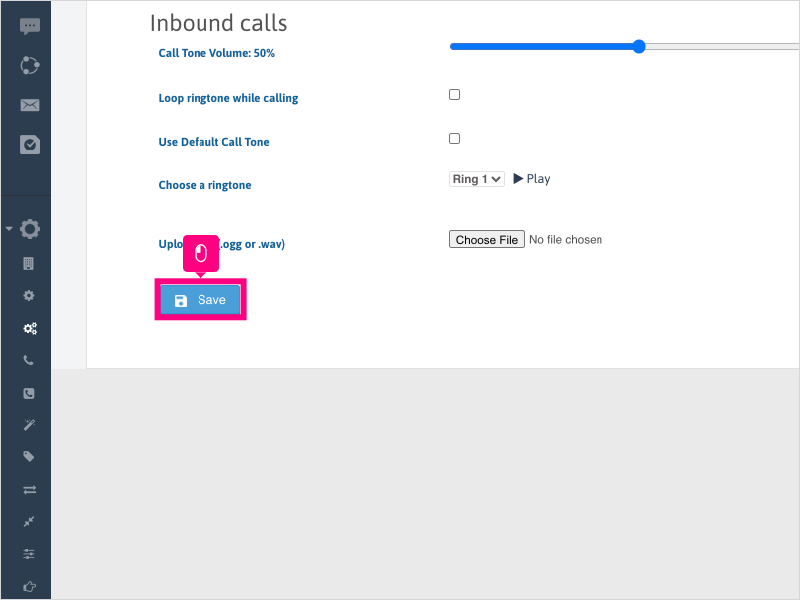
9. Under the Outbound Calls area, uncheck the box for Use Default Call Tone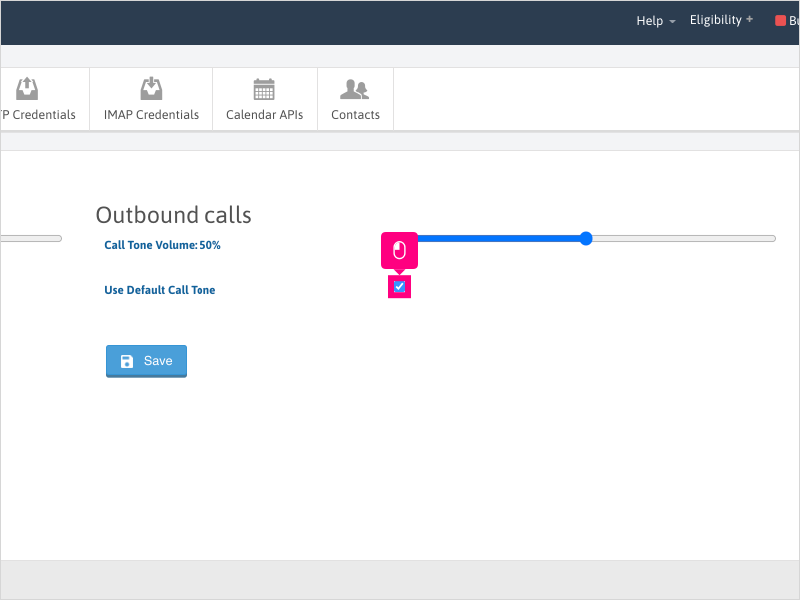
10. Click the dropdown to choose a pre-loaded ringtone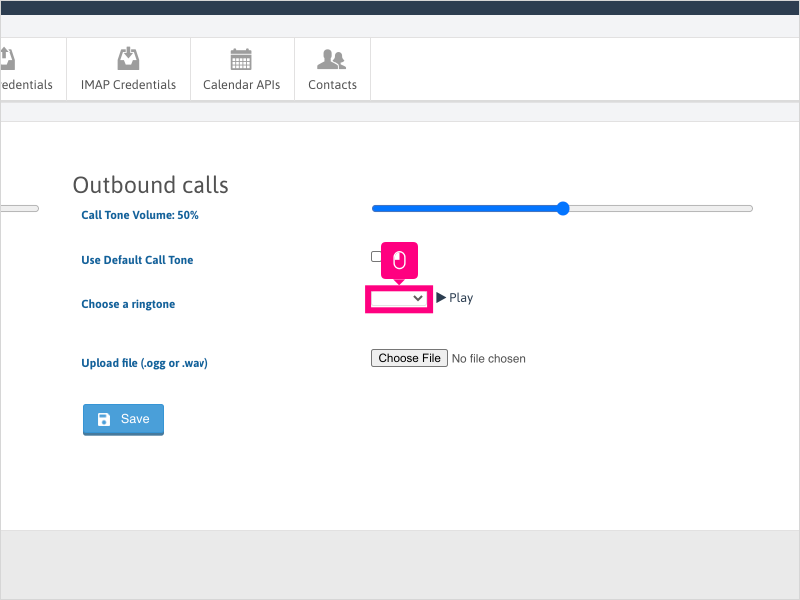
11. For this example, we will select Ring 2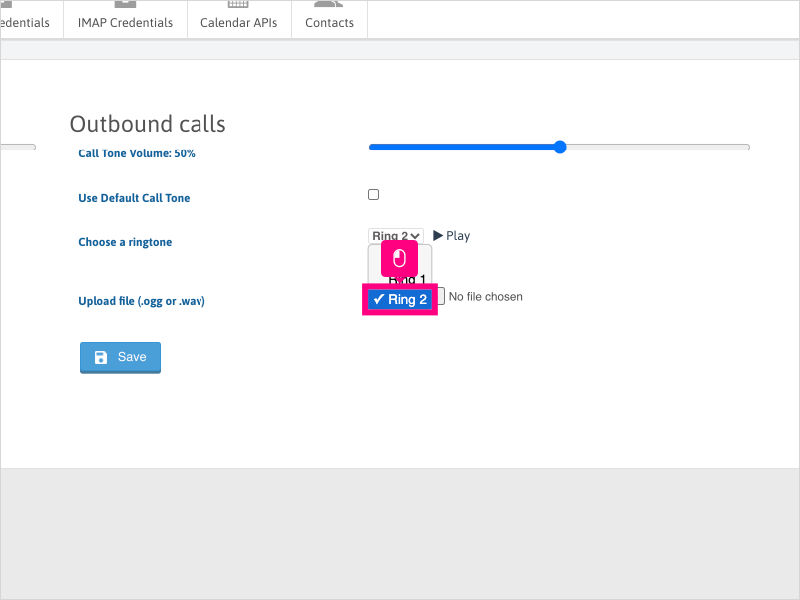
12. If you have a file to upload as your own outbound calls ringtone, click Choose File and upload your file.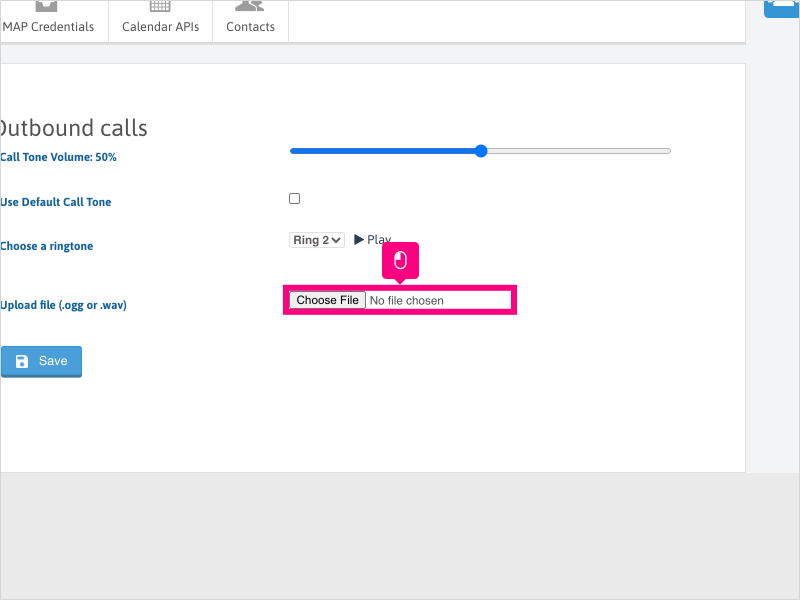
13. Click Save and refresh your browser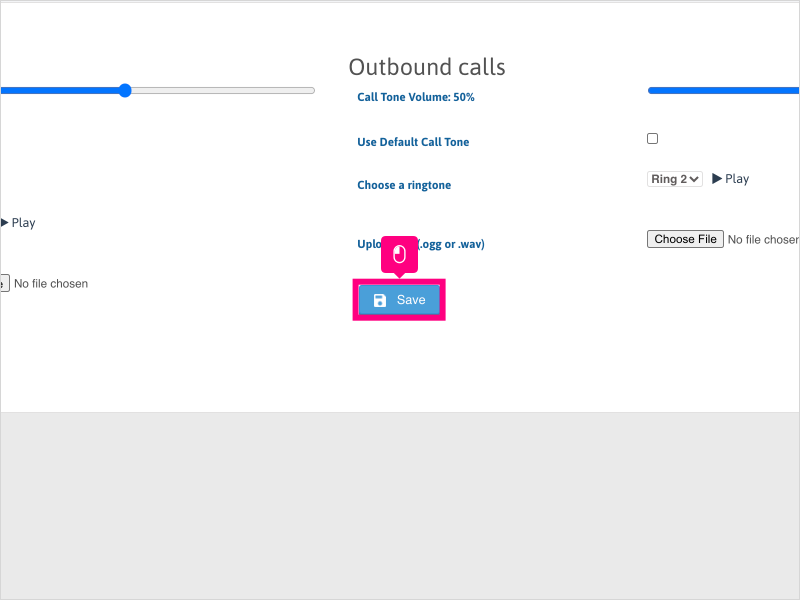
Was this article helpful?
That’s Great!
Thank you for your feedback
Sorry! We couldn't be helpful
Thank you for your feedback
Feedback sent
We appreciate your effort and will try to fix the article