Subject
Applies to: Admin
Purpose: How to create DNC Scrubber Pro rules
Location in Ricochet: Configuration > DNC Scrubber
Description
The instructions in this article require Administrator permission
This article addresses how users can create DNC Scrubber Pro rules in Ricochet.
Resolution
Optional: View the interactive tutorial for this process:
Click here to open the step-by-step tutorial in a new tab
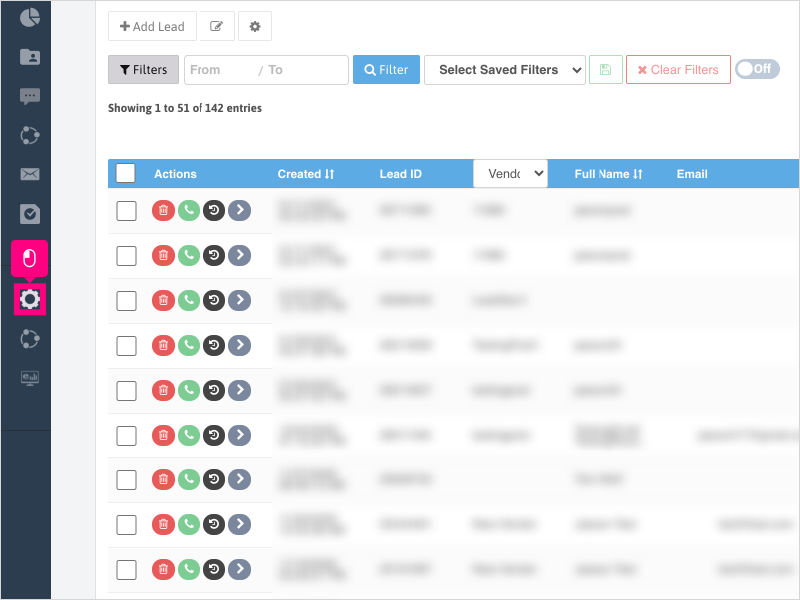
Non-Administrators do not have the access to follow these instructions and should open a ticket.1. To set up DNC Scrubber Pro rules, click Configuration
2. Scroll down and click DNC Scrubber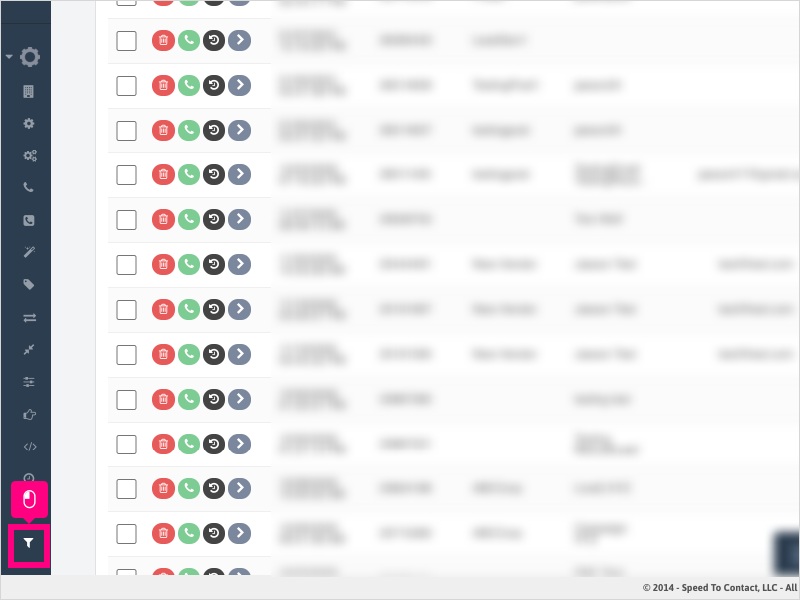
3. Click the + symbol to create a new rule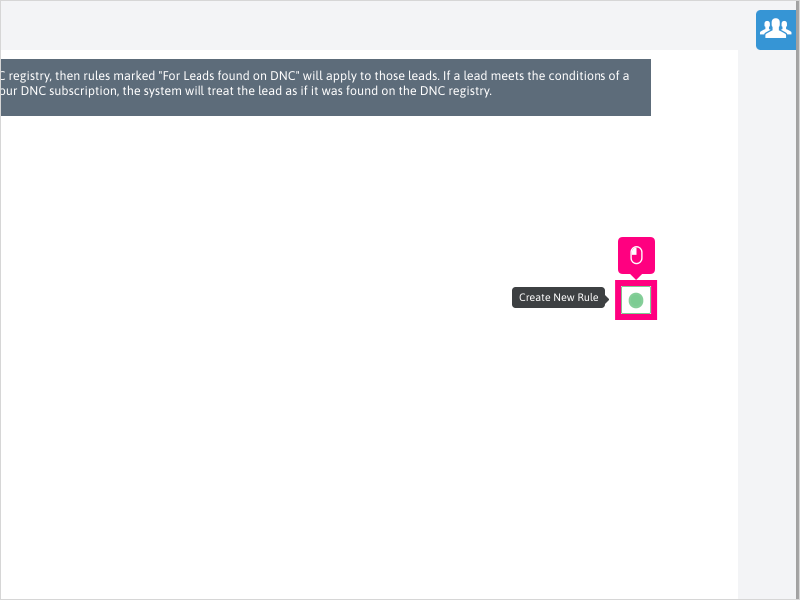
4. Click Edit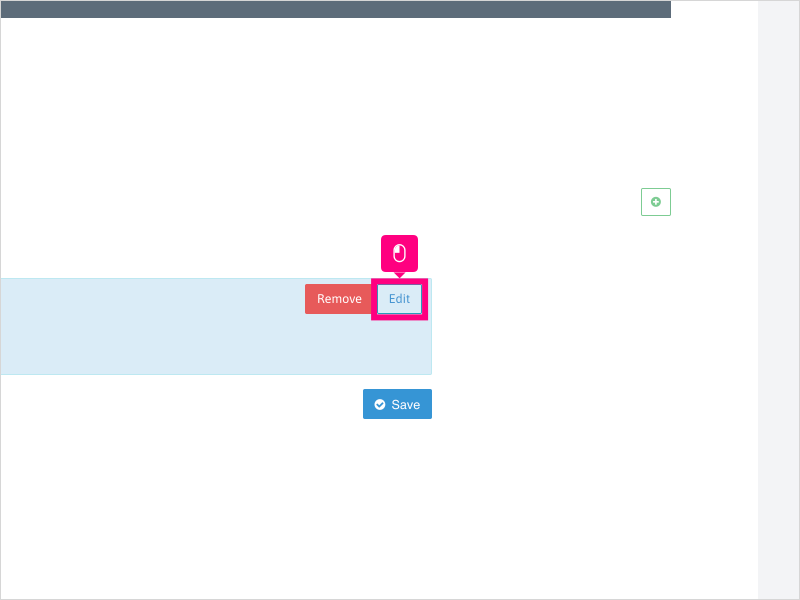
5. You can choose to apply the DNC Scrubber Pro rules to all of your leads in Ricochet or just to leads that match the number(s) on your DNC Registry account.
For this example, we will click "For leads found on DNC list"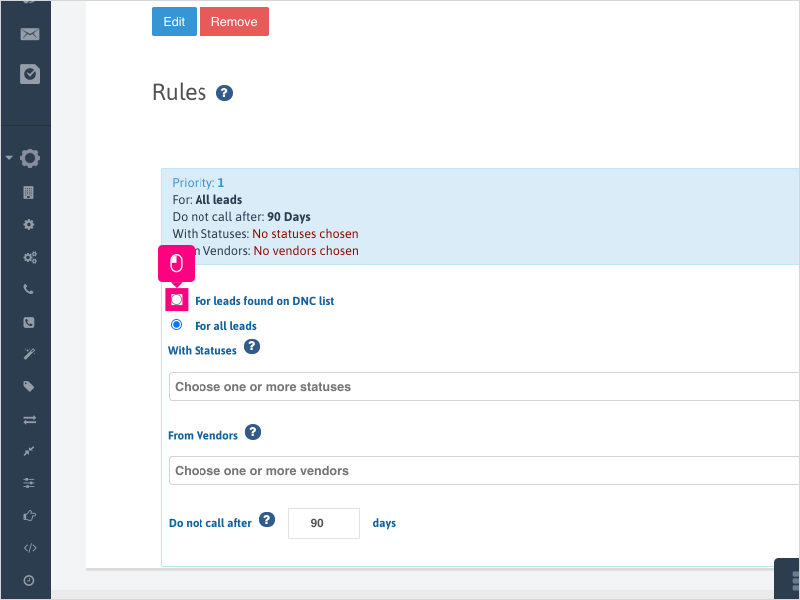
6. Click inside the "With Statuses" area and choose one or more statuses you want the DNC Scrubber to filter by.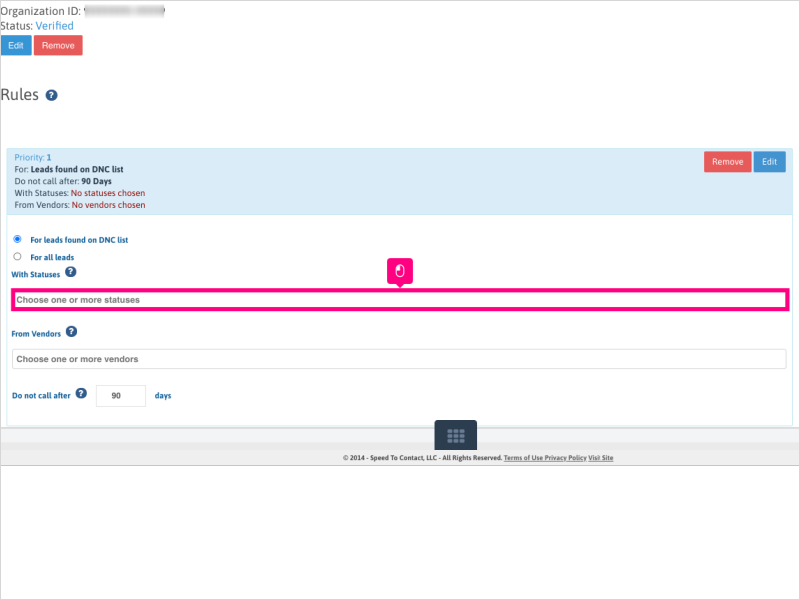
7. For this example, we will click Attempting Contact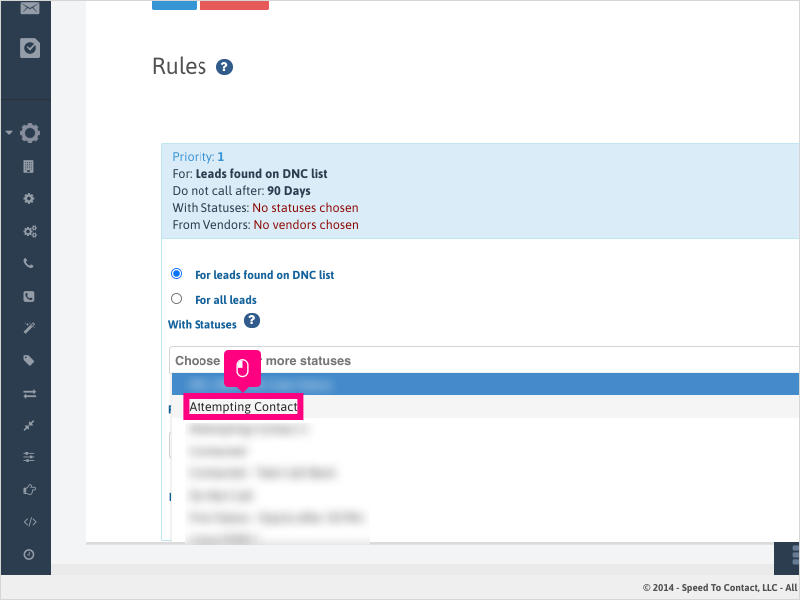
8. Click inside the "From Vendors" area and choose one or more vendors you want the DNC Scrubber to filter by.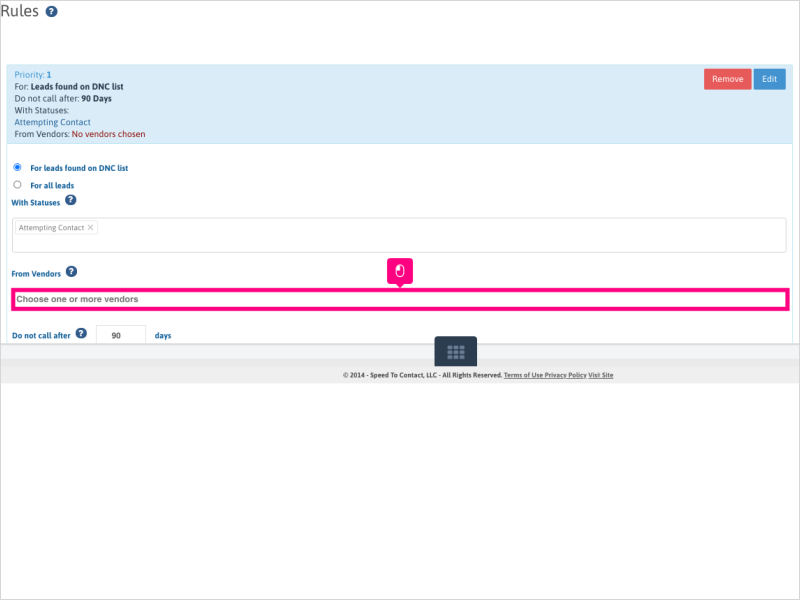
9. For this example, we will click ABCCorp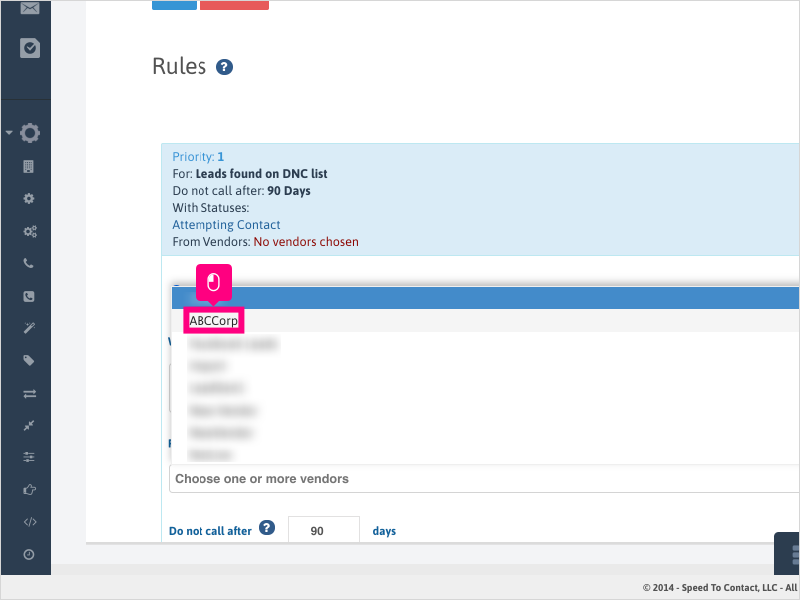
10. Choose when you want to prevent calls on those filtered leads, based on the age of the lead. Click the up/down arrow or type the lead age you want to start filtering the leads for.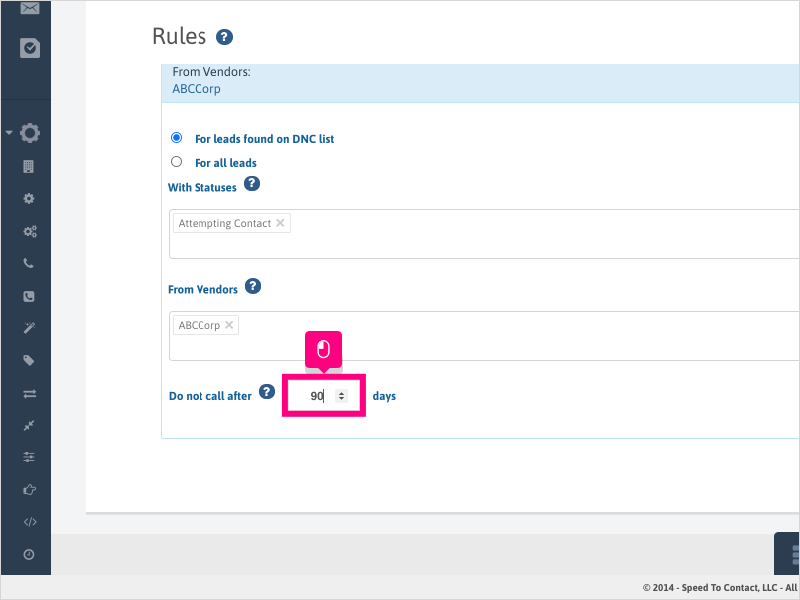
11. Click Save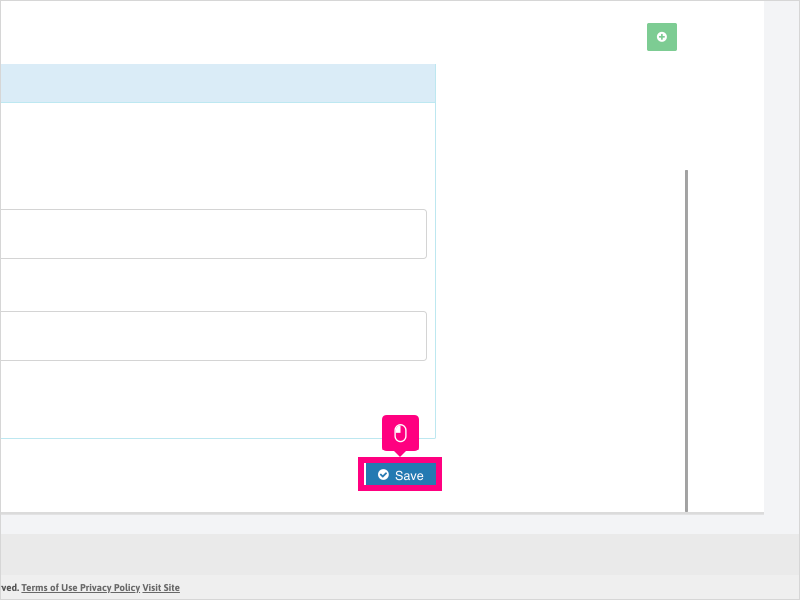
12. Click Ok to confirm saving the rule.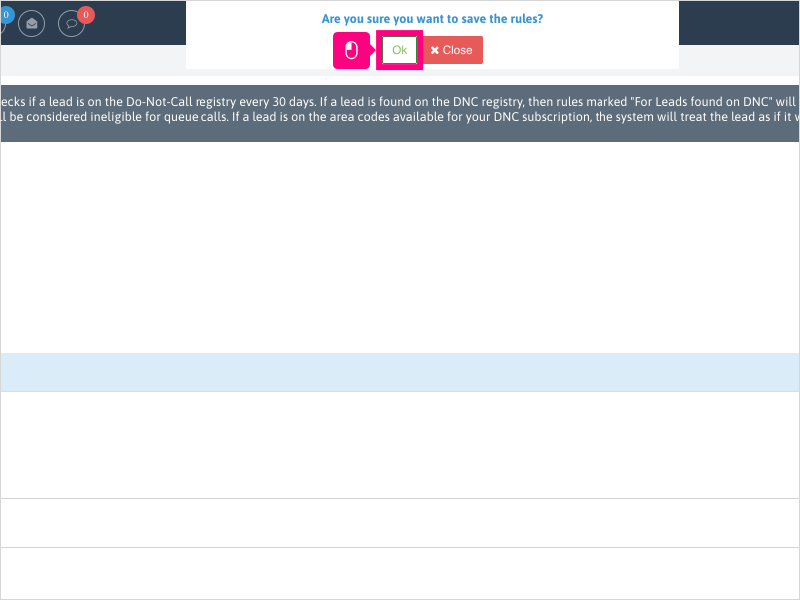
13. If you wish, you can create a new rule by clicking the + symbol again.
Follow steps 3 through 12.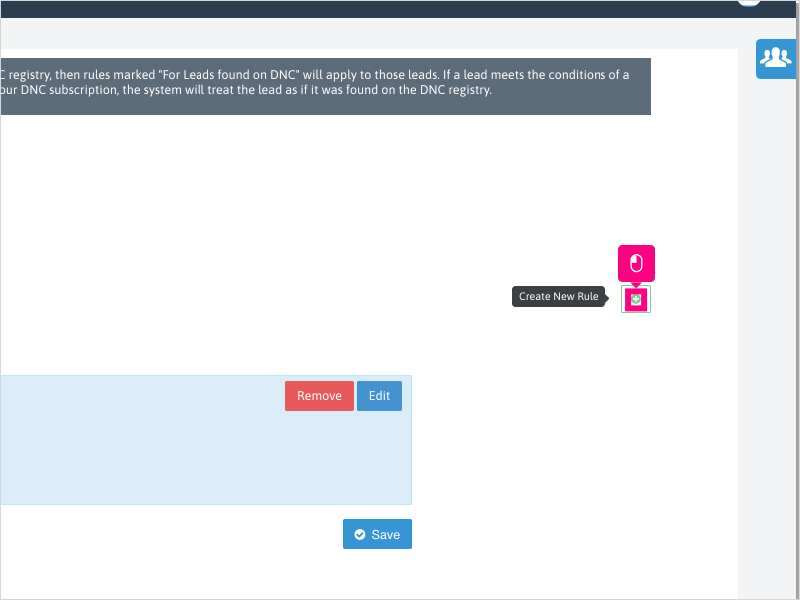
14. Drag and drop the rules in the order of priority you want them to run against your leads.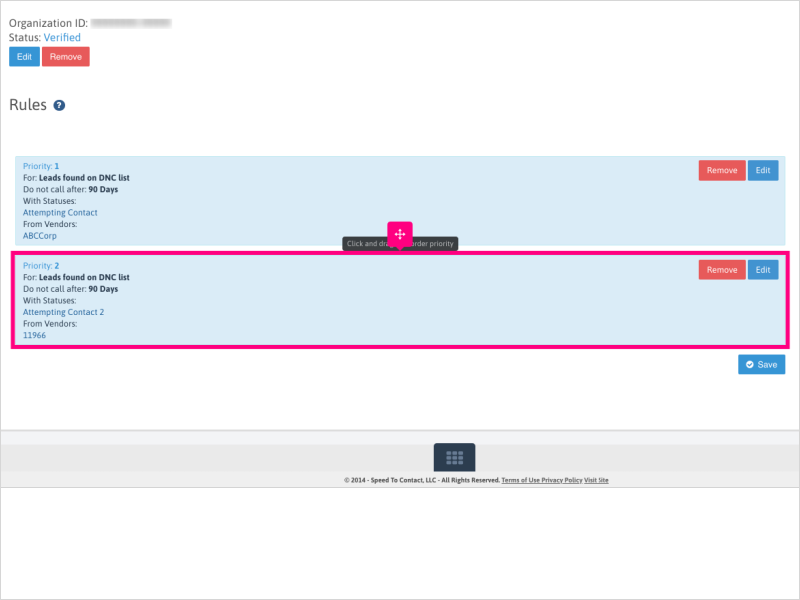
15. You can continue to add more rules, or if finished, click Save.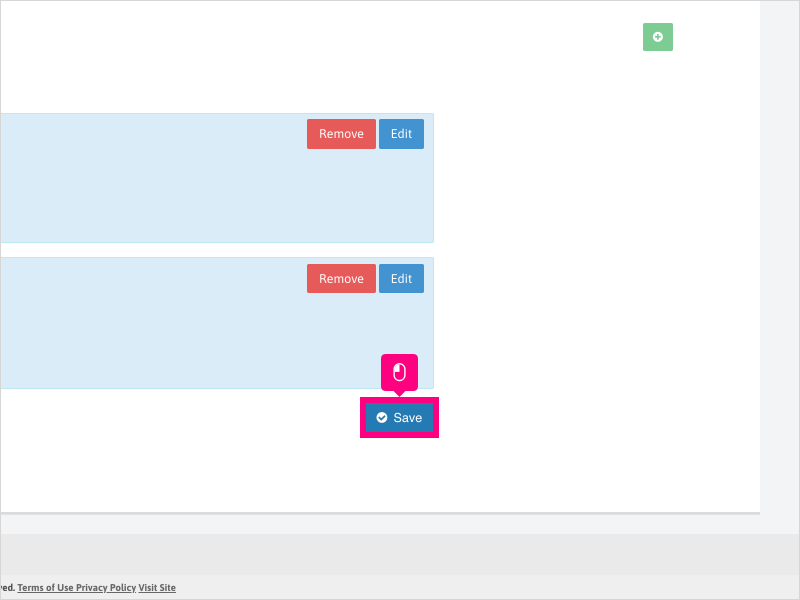
16. Click Ok to confirm saving the rules.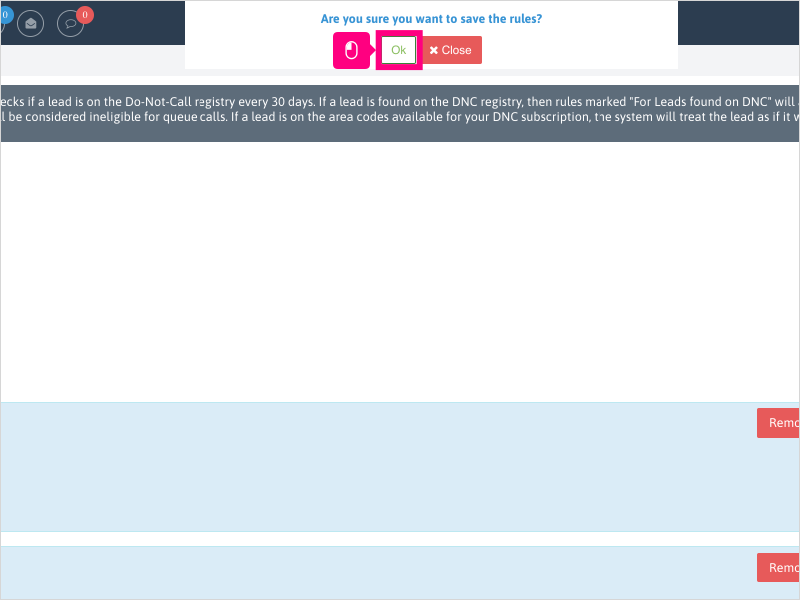
Was this article helpful?
That’s Great!
Thank you for your feedback
Sorry! We couldn't be helpful
Thank you for your feedback
Feedback sent
We appreciate your effort and will try to fix the article