Subject
Applies to: All users
Purpose: Understanding ideal network configuration
Location in Ricochet: N/A
Description
This article addresses how to improve call quality by optimizing router settings (QoS, NAT, disable SIP ALG) and properly configuring firewall rules and ports. Use a stable internet connection—fiber preferred—and monitor speed consistency. A wired connection is recommended over Wi-Fi. Ensure hardware meets requirements and maintain low CPU usage to prevent performance issues.
Resolution
Many companies current network configuration doesn’t require adjusting. However, if you find you are experiencing
call quality issues or frequent call drops you may have to configure your router for our suggested optimal network
configuration outlined below. If your router does not allow for these settings you may need to purchase a new router
that can.
Optimal router settings:
#1 (If available) Enable the QoS mode on your router on the UDP ports range 10000 to 32768.
#2 Disable SIP ALG Protocol (SIP Transformations)
#3 Turn on Consistent NAT
#4 UDP Port Timeout: Increase UDP timeout to 120 seconds
Optimal firewall settings:
#1 Whitelist the following IPs
52.9.254.64/26
52.65.191.160/27
52.65.127.160/27
52.205.63.192/26
52.220.63.128/26
52.58.255.224/27
52.59.63.224/27
54.233.255.192/27
54.233.191.0/27
52.9.254.123/32
And for our second carrier the following IP ranges
54.172.60.0 - 54.172.61.255
CIDR NOTATION 54.172.60.0/23
Step 2: Configure your firewall
HTTP/HTTPS transports: allow traffic from these source IP ranges to access your HTTP (TCP port 80) and/or HTTPS (TCP
port 443) web applications SIP transport: allow traffic from these source IP ranges and source ports UDP 5060, TCP 5060,
UDP 5080, TCP 5080, UDP 5061, TCP 5061, UDP 5063, TCP 5063 RTP transport: allow traffic from these source IP ranges
to UDP port range 10000 to 32768 And finally:
Not all firewalls will support these settings, but as a general rule, if you are having firewall issues, these settings could
give you the best phone quality.
Internet Service Providers ISP
Although cable providers can boast of high speed internet connections what they don’t tell you is that most everyone
using cable is using a shared physical connection, to include your office, your building and any other building on the
same node! Therefore it’s impossible to sustain a constant high speed connection at all times. If anyone is pulling down
the network by uploading/downloading large amounts of data, or you may notice slower speeds in the afternoon as
people come home from school/work get on, everyone is affected! Depending on how many are on your same
connection will vary the potential severity of the issue. Having said that, with optimal router settings configured several
of our clients use cable without incident.
For this reason we recommend Fiber if at all possible as not only is it delivered over a superior physical network, fiber is
a direct connection from you to the ISP. Hands down if you have the option to one or the other go with fiber!
To get an idea of the speed of your network you can visit www.speedtest.net however remember that is a snapshot of
what the network is doing right at that time. You may need to spot check throughout the day to see how it fluctuates.
Although Ricochet can work well with slower speeds if the user count is low typically 25mb Download Speeds / 5 to
10mb Upload Speeds is where you want to be if possible!
Wired vs Wireless Network
We all love the convenience of wireless devices, but unfortunately, although you can use Ricochet on a wireless device
we can’t provide any assistance if you have poor sound or performance quality due to the many factors that are out of
our control. Depending on your location from the router, quality of wireless receiver and other factors some offices may
not be able to use wireless set ups and should use a physical wired network.
Hardware
Recommended Hardware Specs:
Processor: i3, i5, i7 3GHz or higher
Memory: 8GB DDR3 or higher minimum
Hard Drive: SSD recommended for optimal performance
Although Ricochet can be run on most “thin client” or office computers, if the CPU is maxed out there is no way to avoid
call quality and performance issues. This can be viewed in Windows by right clicking in the bottom task bar and selecting “Task Manager” when the task manager loads you may need to click “show more detail”. A proper running CPU should always run at about 12%-15% regularly. It may jump up when you turn it on, but it will/should drop back down and fluctuate around that range as various services get enabled and run. If your’s issitting at 50% or higher and not budging it’s highly likely that you have some sort of Malware, too many processes running or a faulty cpu.
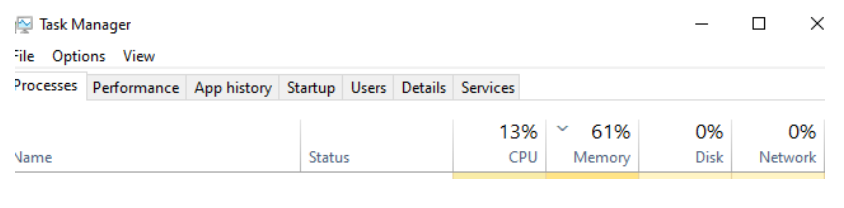
A good, free trial service to use is www.malwarebytes.com
You may find if you remove some processes you don’t need and clear the malware the CPU may resume to normal.
**It is highly recommended when troubleshooting to begin by investigating the computer – Internal Network –
Internet Speed. If you start by contacting your ISP they may only provide you with data that supports they are
providing you with excellent speed!
Was this article helpful?
That’s Great!
Thank you for your feedback
Sorry! We couldn't be helpful
Thank you for your feedback
Feedback sent
We appreciate your effort and will try to fix the article