Subject
Applies to: Admin
Purpose: To explain how users can customize which lead fields appear in the “Search by common fields” dropdown on the Lead Management page.
Location in Ricochet: Lead Management
Description
The instructions in this article require Administrator permission
Learn how to add, remove, reorder, and manage both default and custom lead fields that appear in the “Search by common fields” dropdown on the Lead Management page. This article walks through updating visible fields, adjusting column order, and optimizing the lead table layout to improve search and data visibility.
Resolution
Optional: View the interactive tutorial for this process:
Click here to open the step-by-step tutorial in a new tab
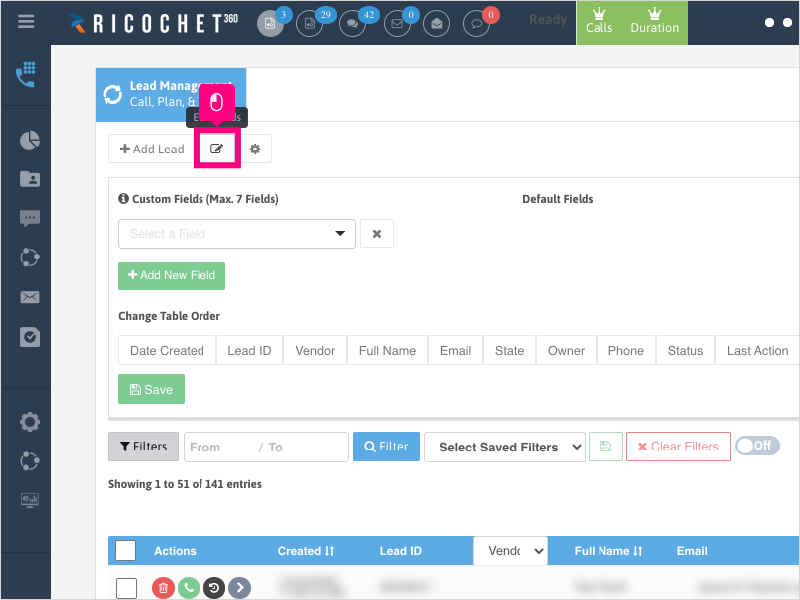
Non-Administrators do not have the access to follow these instructions and should open a ticket.1. To edit the dropdown items that are visible in the "Select Fields to Search", first click Edit Fields
2. Select or deselect any of the Default Fields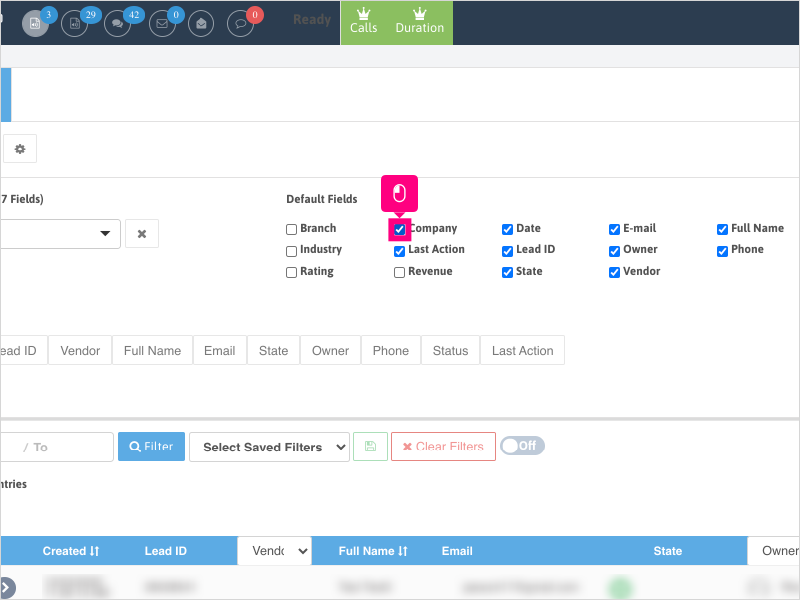
3. To add lead fields to the Lead Management Page and also the dropdown menu, in the "Custom Fields" section, click the dropdown to search for the lead field you want to add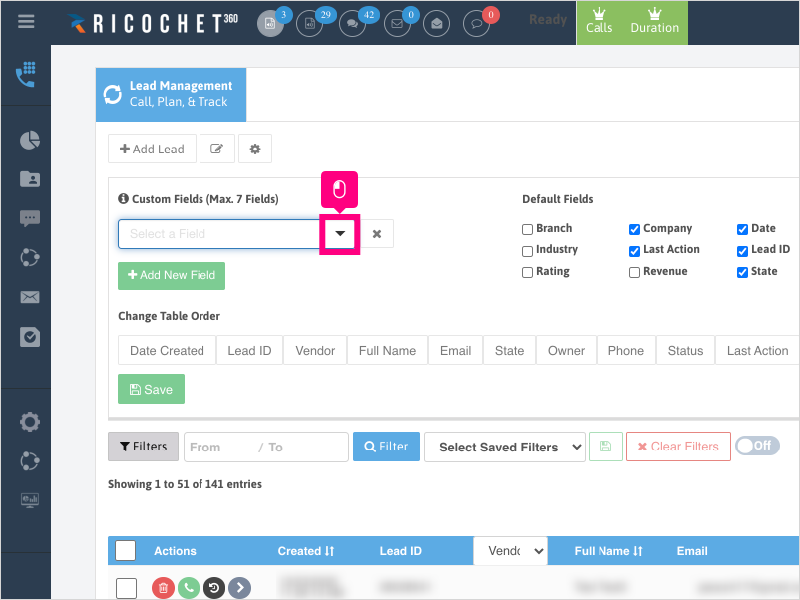
4. Select the field you want to add.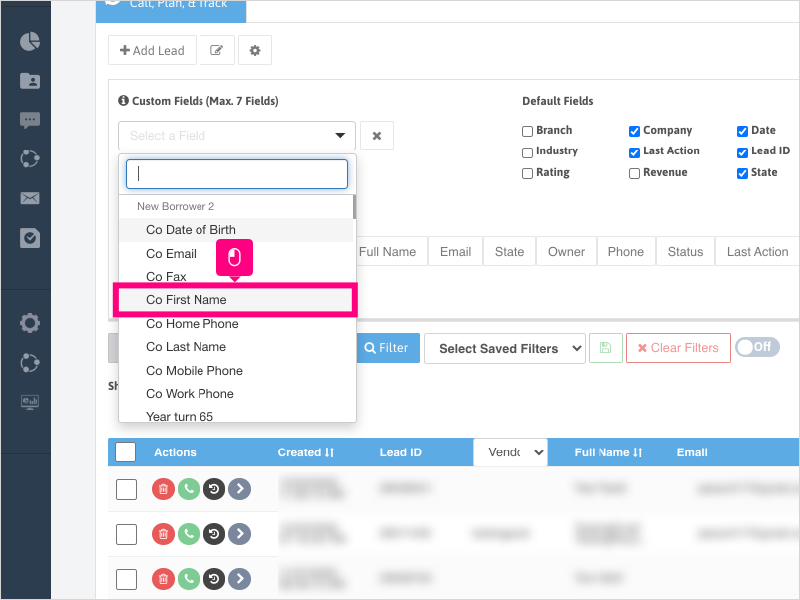
5. If you wish to add more fields (up to 7 additional), click Add New Field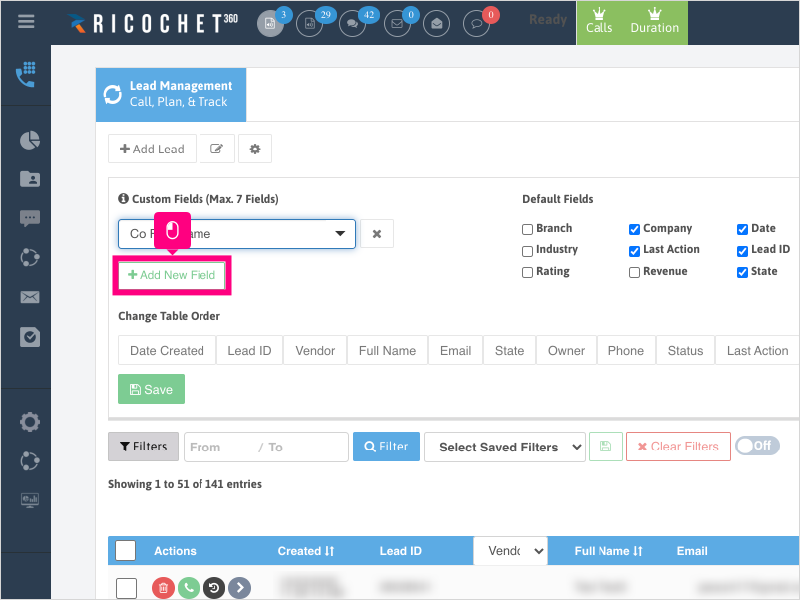
6. Select the additional field you want to add.
Repeat these steps until you add all the fields you want to see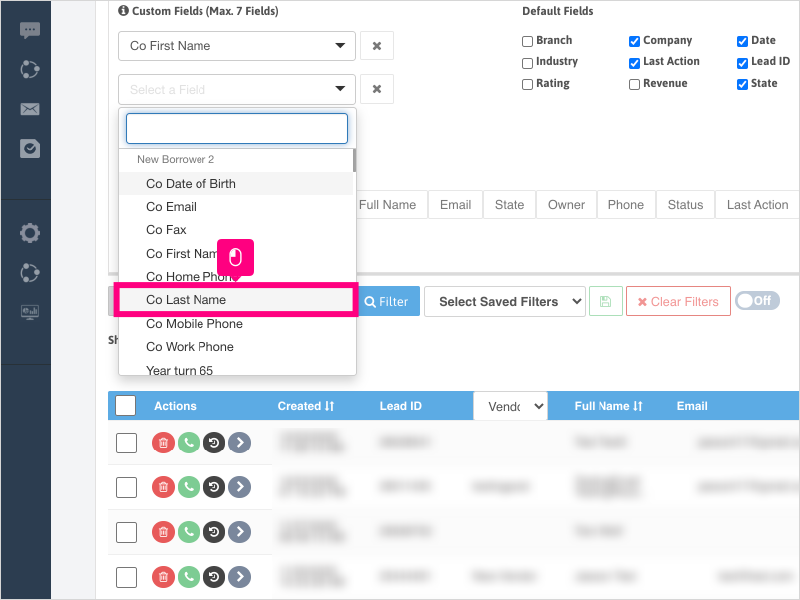
7. Click Save
Note: Ricochet will refresh automatically to apply the changes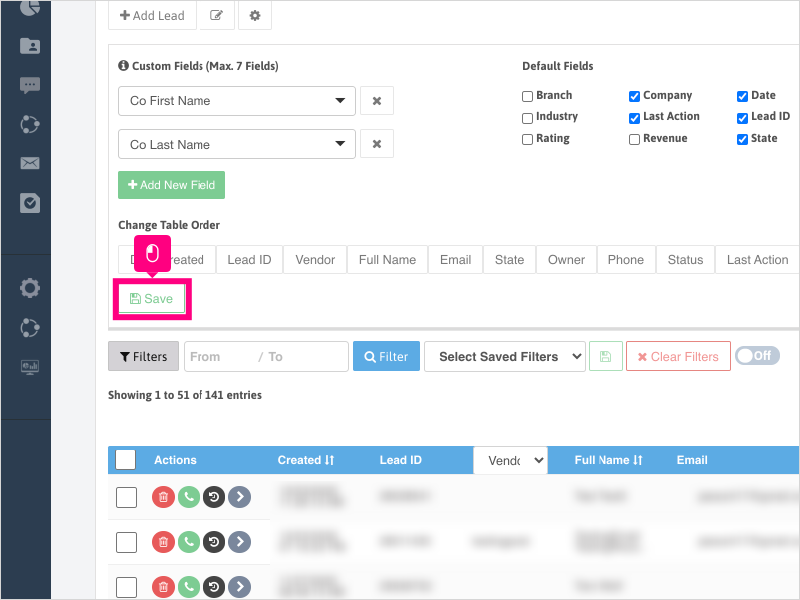
8. The new columns will get added to the far right of your column list (you may need to scroll to the right to see them).
If you want to edit the layout, click Edit Fields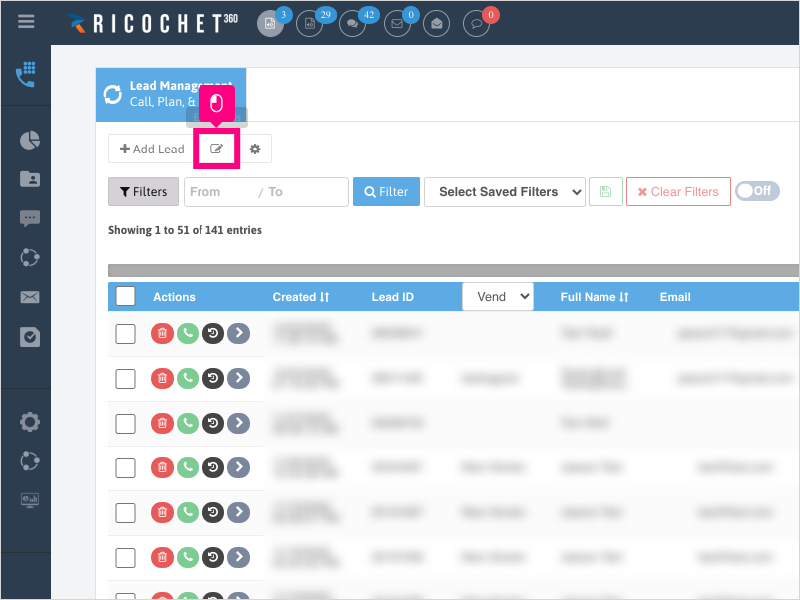
9. With your mouse, click and drag the field name you want to change position then drop it in the location you wish to place it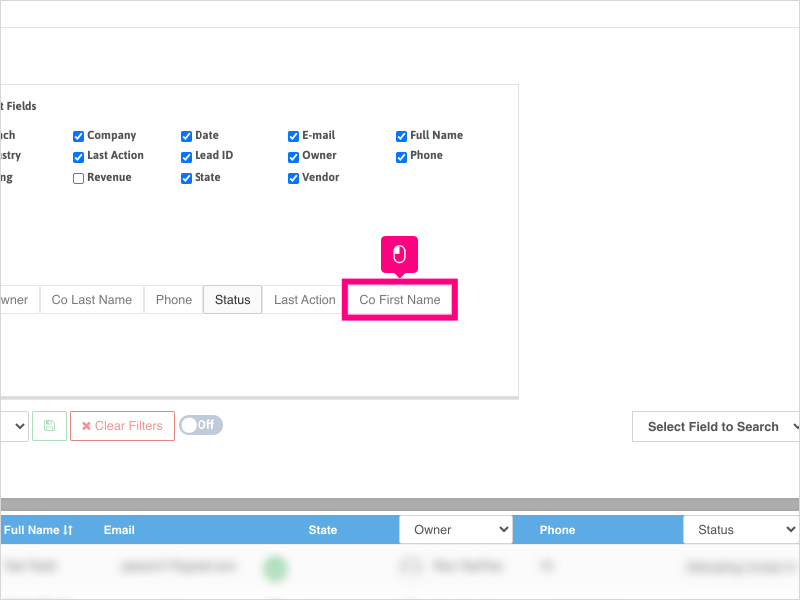
10. Once you've made your table order changes, click Save
Note: Ricochet will refresh automatically to apply the changes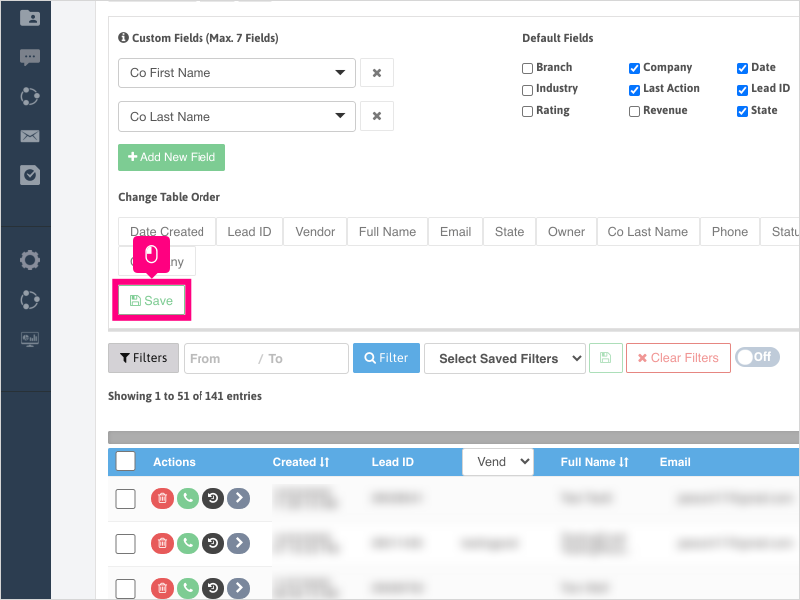
11. To search for data in a specific column, click Select by common fields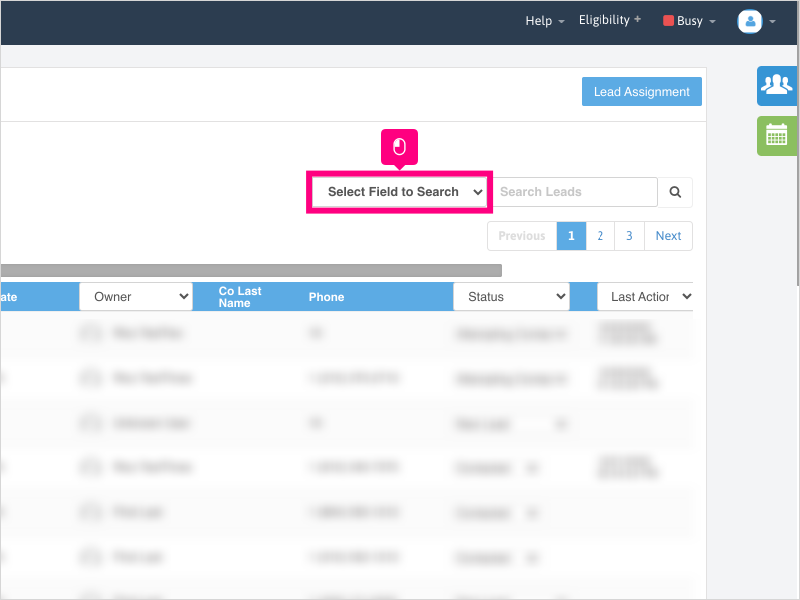
12. Select the field you want to search.
Once selected, enter the information you wish to search in the "Search Leads" box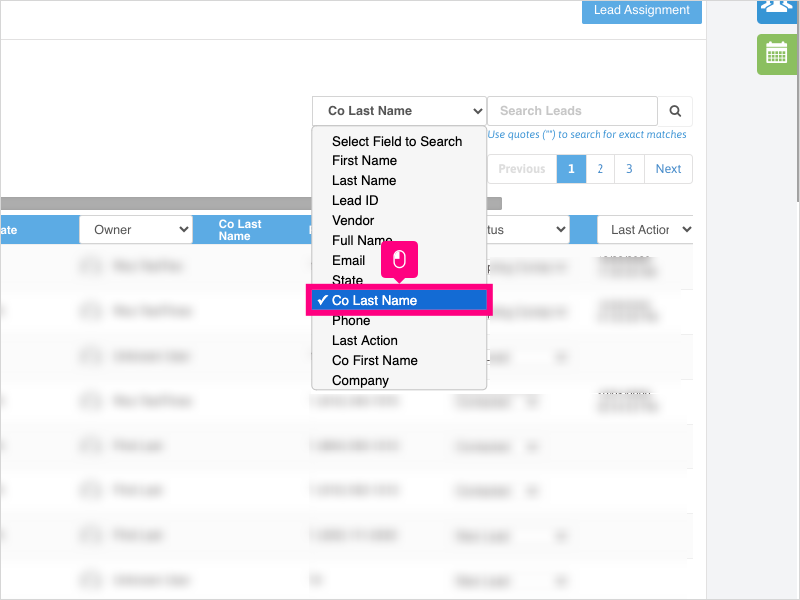
13. If you wish to remove columns or default fields from the lead management page view, click Edit Fields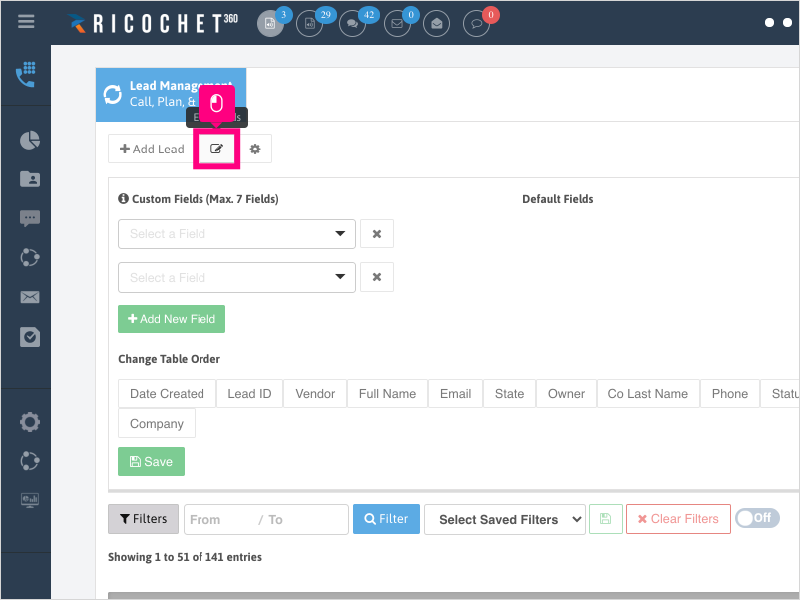
14. Click the X next to the field or fields you wish to remove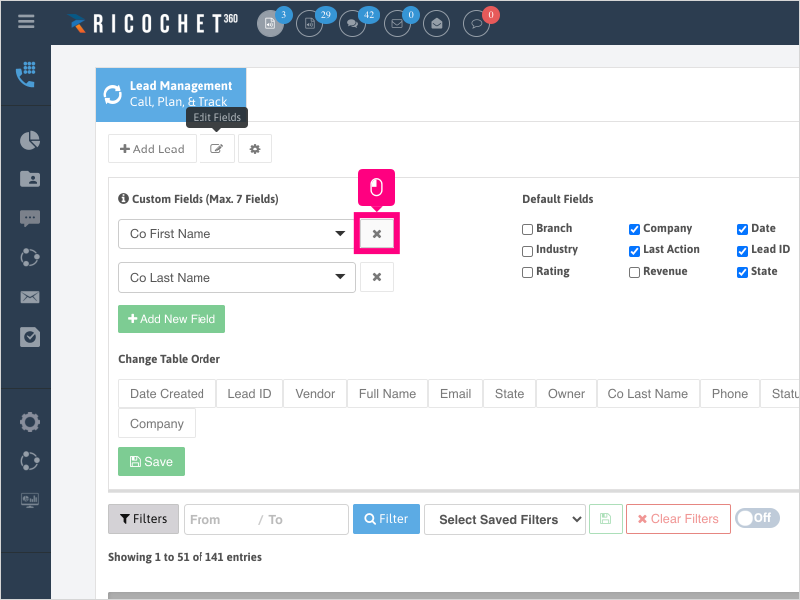
15. If you want to remove a default field, unselect the checkbox or checkboxes from the Default Fields section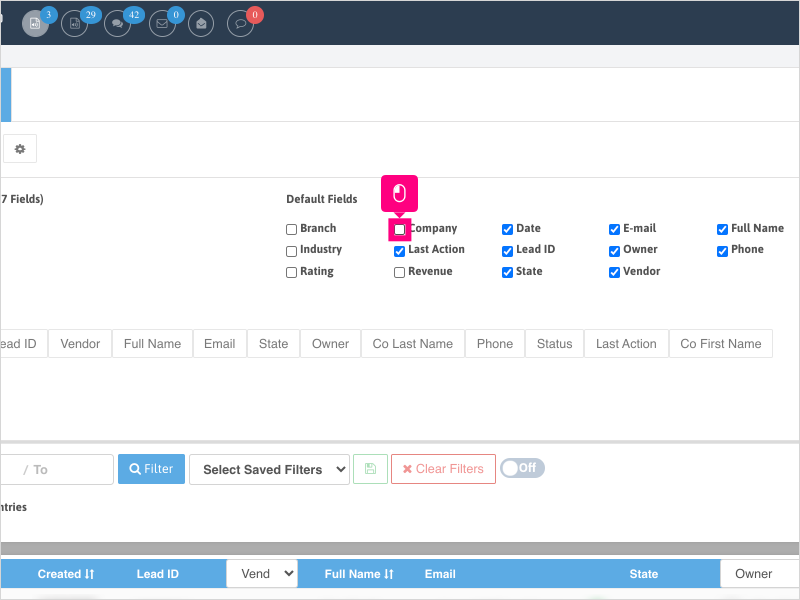
16. Click Save
Note: Ricochet will refresh automatically to apply the changes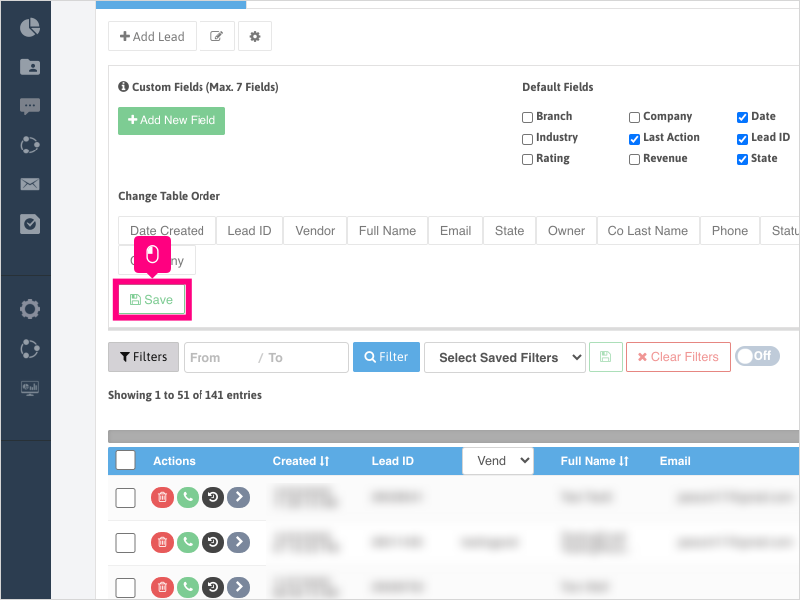
Was this article helpful?
That’s Great!
Thank you for your feedback
Sorry! We couldn't be helpful
Thank you for your feedback
Feedback sent
We appreciate your effort and will try to fix the article