Subject
Applies to: Admin/Branch Manager
Purpose: To explain how to remove an existing saved filter from the Lead Management page when it is no longer needed.
Location in Ricochet: Lead Management
Description
The instructions in this article require Branch Manager permission or above
This article walks through the steps to locate and delete a saved filter on the Lead Management page, ensuring your saved filter list stays organized and up to date.
Resolution
Optional: View the interactive tutorial for this process:
Click here to open the step-by-step tutorial in a new tab
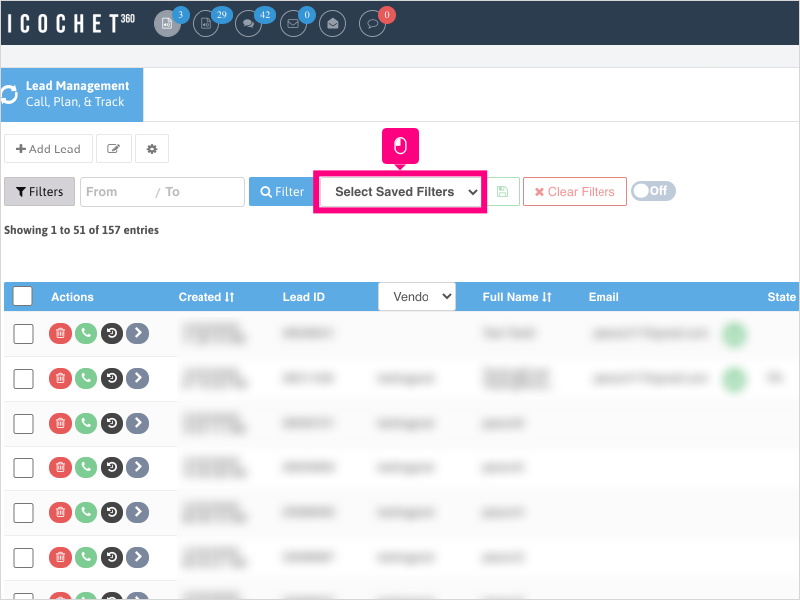
Non-Administrators do not have the access to follow these instructions and should open a ticket.1. To delete a saved filter, on the Lead Management Page, click the Select Saved Filters dropdown
2. Select the saved filter you wish to remove.
The page will automatically adjust to show the leads that match the filter saved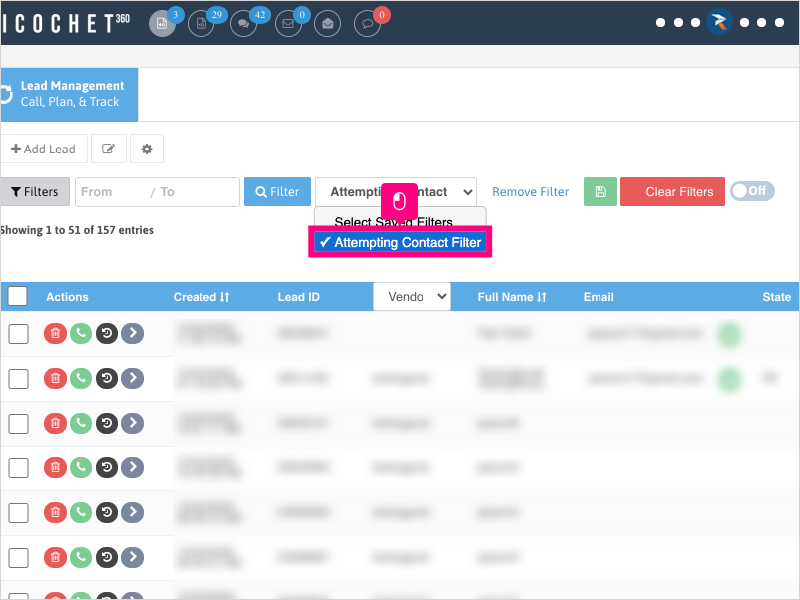
3. After selecting it from the Saved Filter dropdown and the page loads, click Remove Filter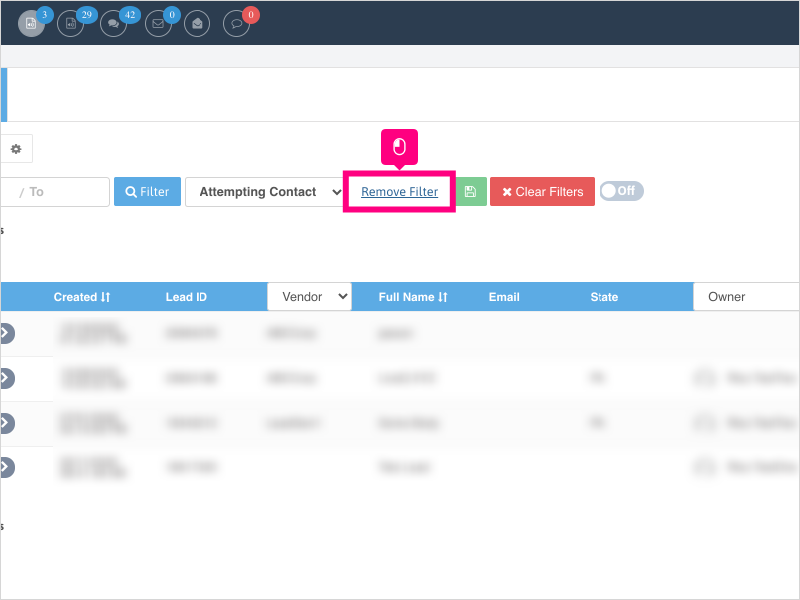
4. Click Ok to confirm deletion of the Saved Filter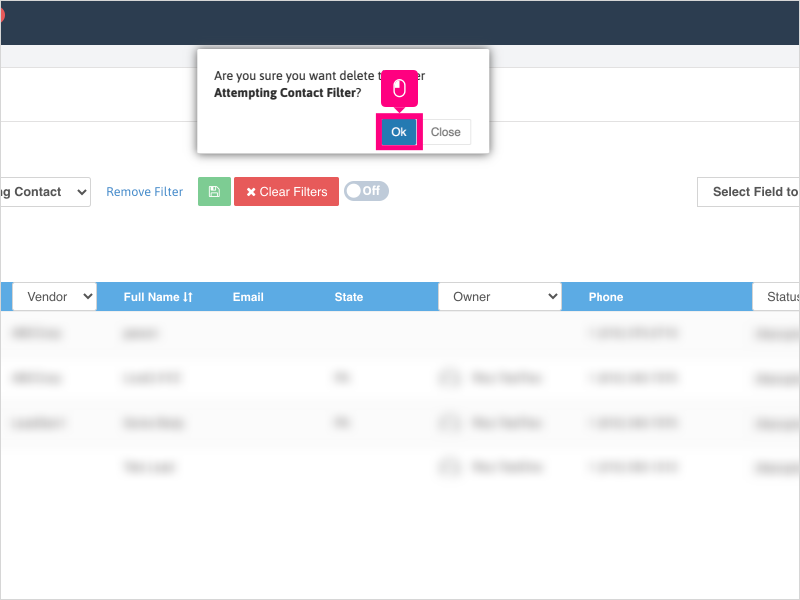
Was this article helpful?
That’s Great!
Thank you for your feedback
Sorry! We couldn't be helpful
Thank you for your feedback
Feedback sent
We appreciate your effort and will try to fix the article