Subject
Applies to: Admin
Purpose: To explain how users can associate multiple leads as contacts.
Location in Ricochet: Lead Management
Description
The instructions in this article require Administrator permission
This article addresses how administrators can link up to 50 leads together as contacts, allowing visibility and interaction between related lead records.
Resolution
Optional: View the interactive tutorial for this process:
Click here to open the step-by-step tutorial in a new tab
Non-Administrators do not have the access to follow these instructions and should open a ticket.1. The "Associate as Contacts" allows you to link up to 50 leads together to have visibility from within another lead record.
To associate leads as contacts, select up to 50 leads on the lead management page.
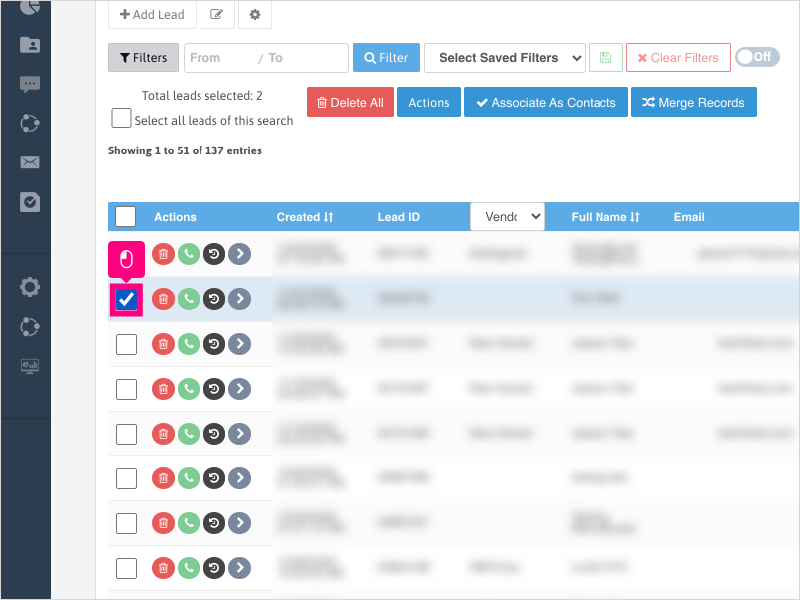
2. Click Associate As Contacts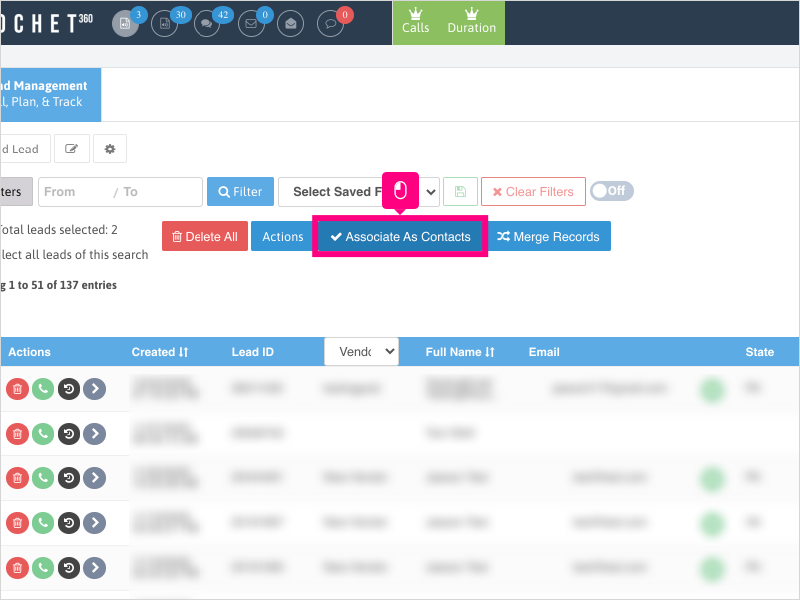
3. Click Ok to associate the leads as contacts.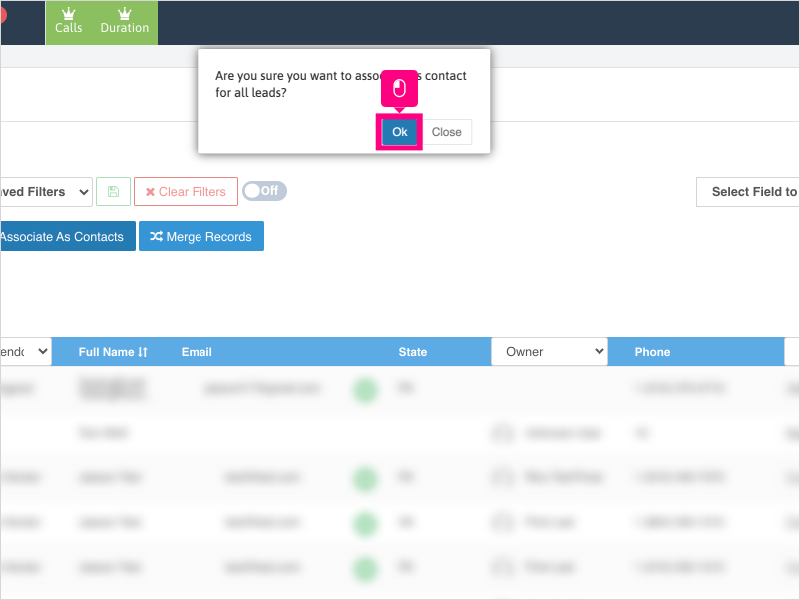
4. To view the Contacts, click into a lead that you just associated as a Contact.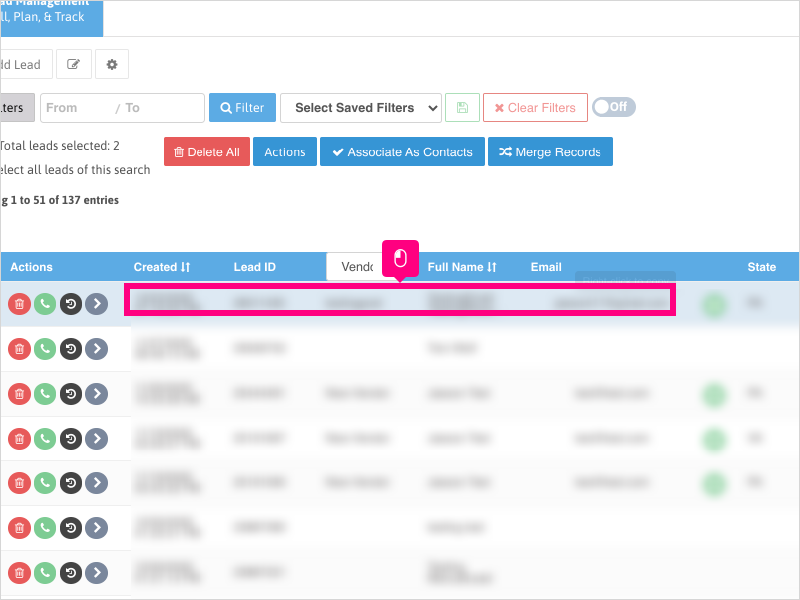
5. Click the Contacts tab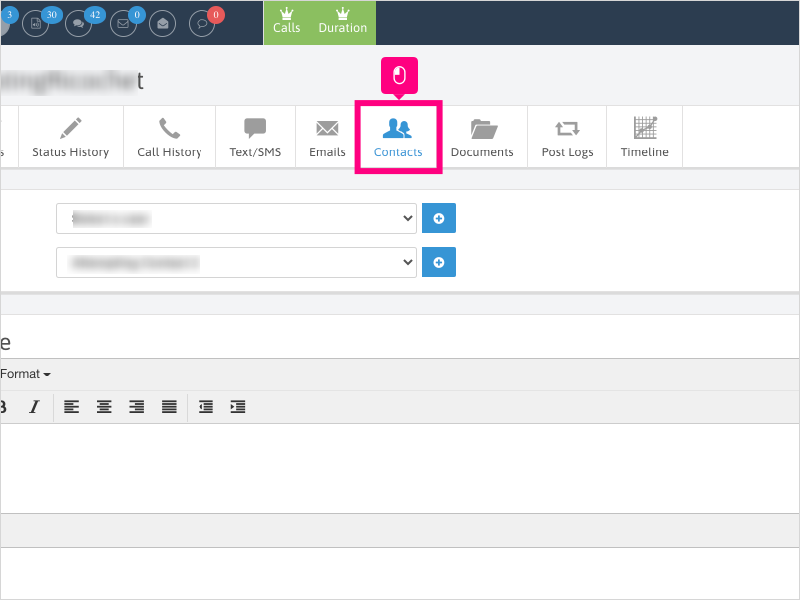
6. To view the other lead or leads that are associated as a contact, click the "View" icon - this will take you to the lead record.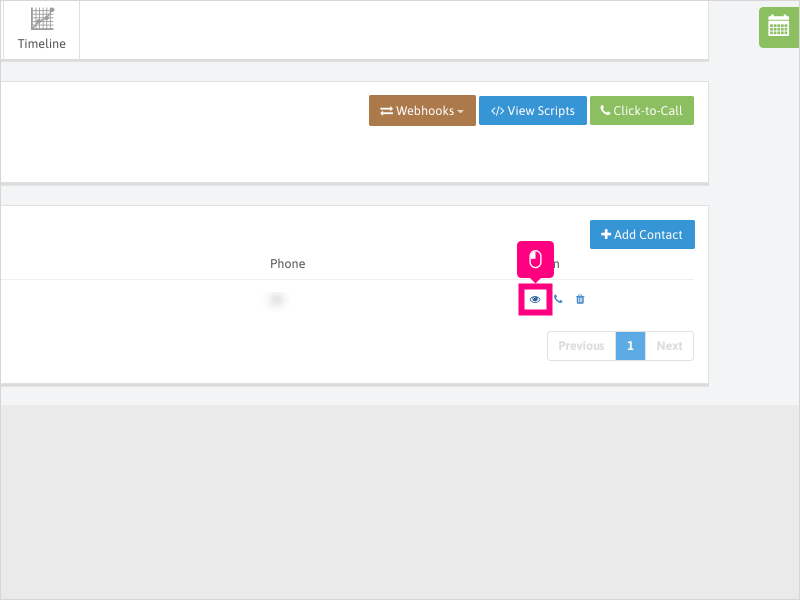
7. Once you get to the other lead record, click the Contacts tab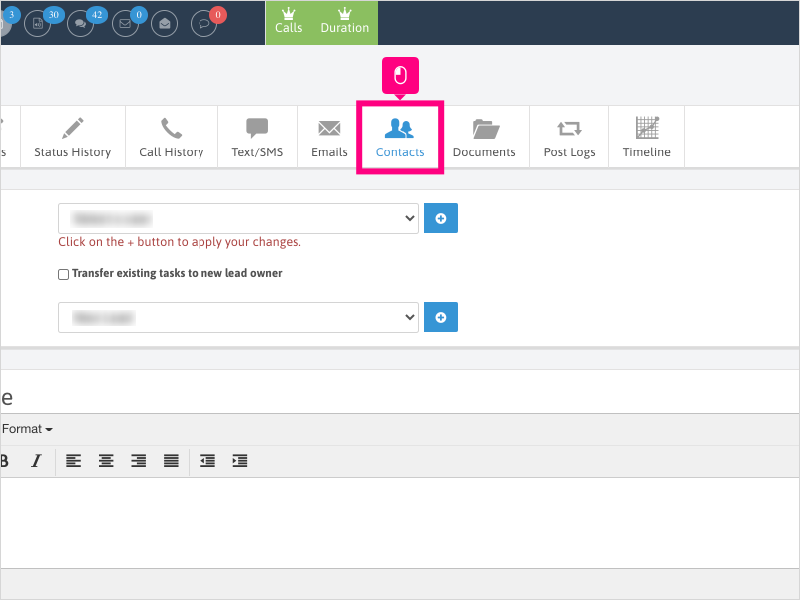
8. You may also call the lead from the Contacts tab by clicking the phone icon to initiate a call.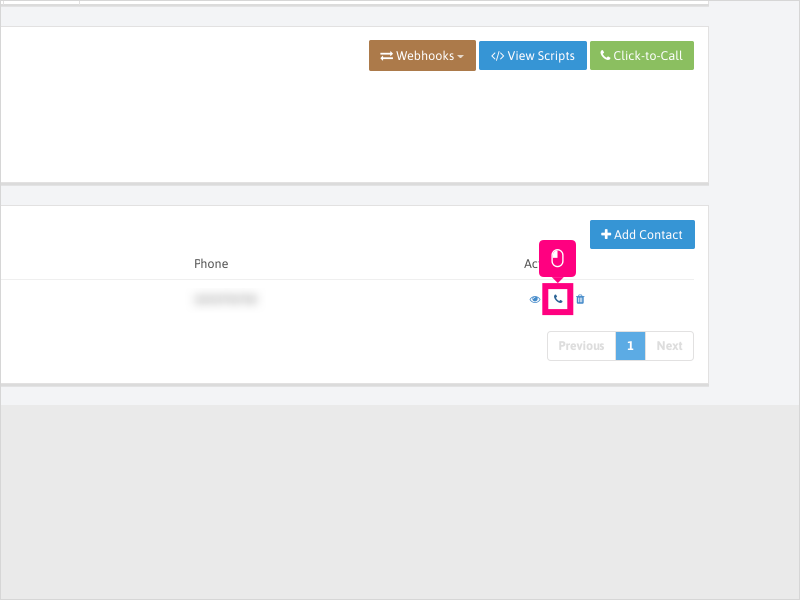
9. If you need to delete a contact, you can click the trash can icon to remove the contact from the lead.
Note: Removing the contact from one lead will not automatically remove it from the lead/contact page you deleted.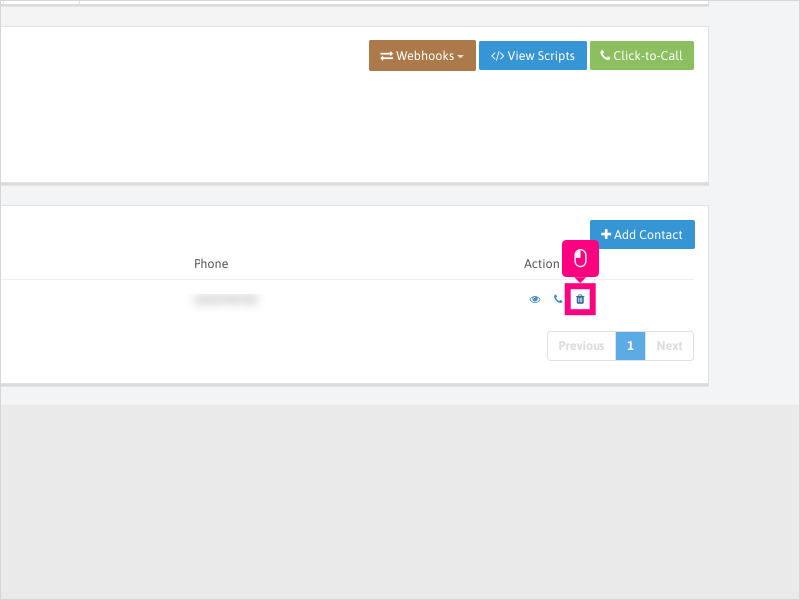
10. Click Ok to confirm deleting of the contact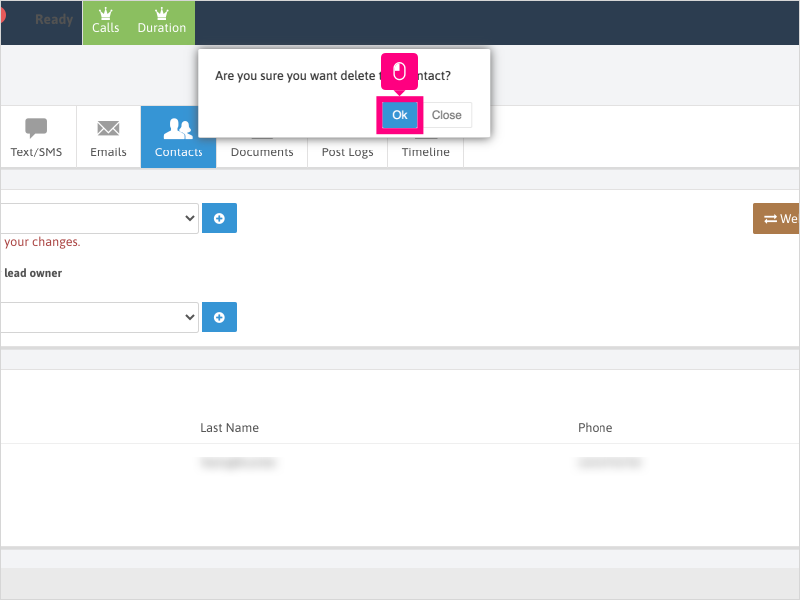
11. Once removed, you'll see a confirmation message at the bottom right that the contact was deleted.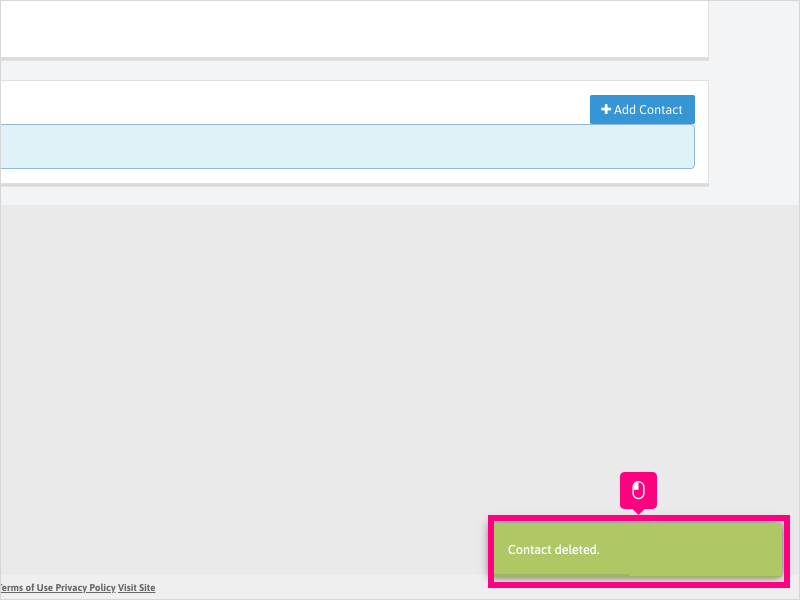
Was this article helpful?
That’s Great!
Thank you for your feedback
Sorry! We couldn't be helpful
Thank you for your feedback
Feedback sent
We appreciate your effort and will try to fix the article