Subject
Applies to: Admin/Branch Manager
Purpose: Enable Admin/Branch Managers to customize Agent Performance Reports by adding status columns for detailed performance tracking.
Location in Ricochet: Dashboard -> Performance Dashboard -> Agent tab
Description
The instructions in this article require Branch Manager permission or above
Step-by-step guide to adding custom status columns to the Agent Performance Report in the Performance Dashboard for filtered analysis by date range and lead status.
Resolution
Optional: View the interactive tutorial for this process:
Click here to open the step-by-step tutorial in a new tab
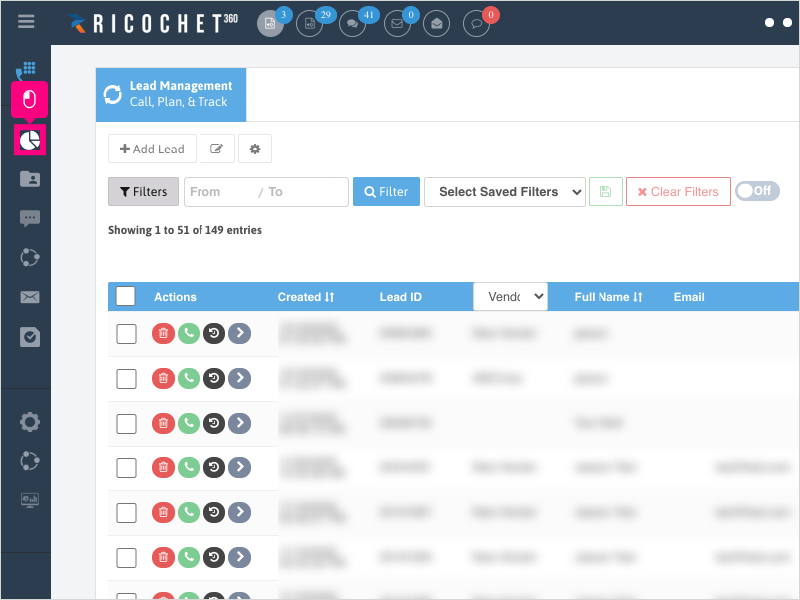
Non-Administrators do not have the access to follow these instructions and should open a ticket.1. To add columns to your Agent Performance Reports, click on Dashboard
2. Click Performance Dashboard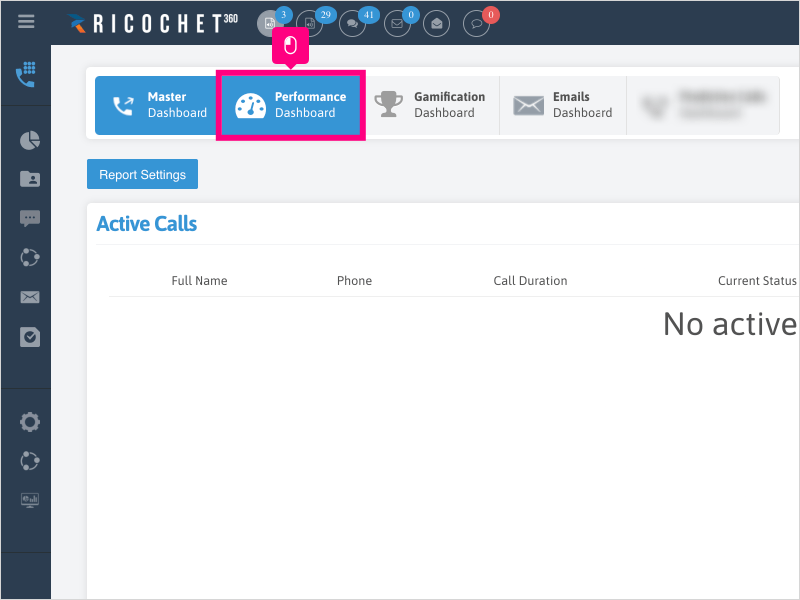
3. Click the Agent tab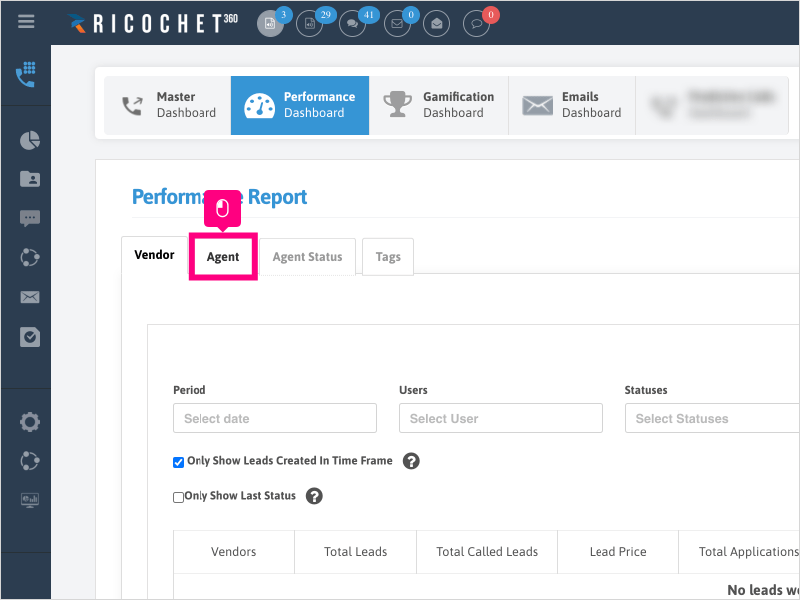
4. In the "Period" section, click Select date and pick your date range that you want to run your report.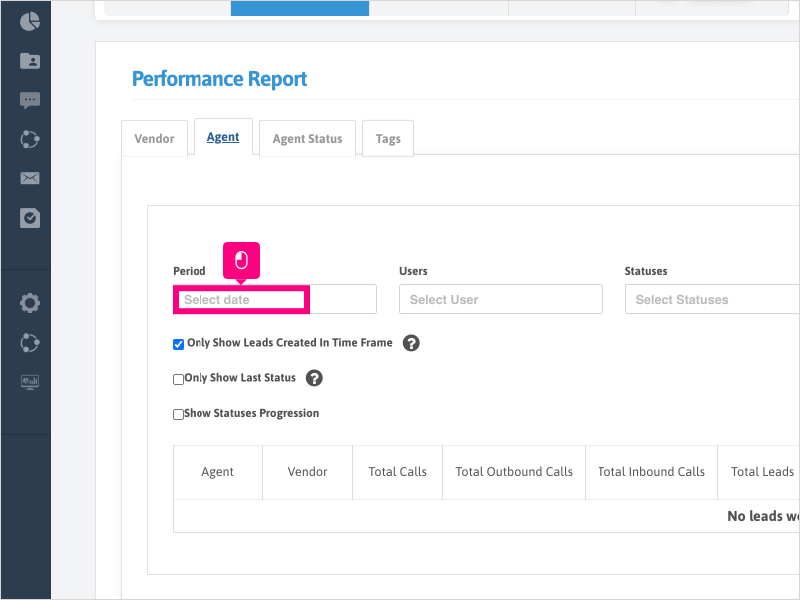
5. For this example, we will click Last 7 days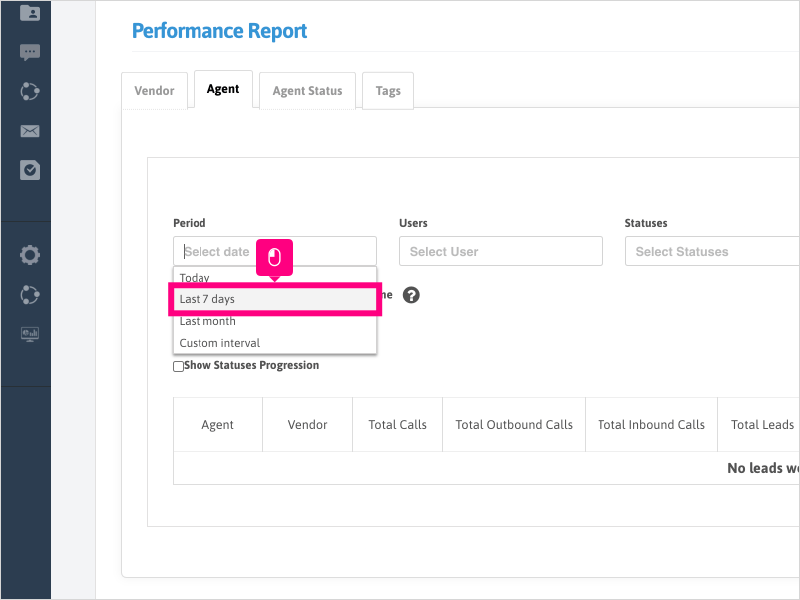
6. Click Select Statuses and search for the status or statuses you want to add a column for on your report.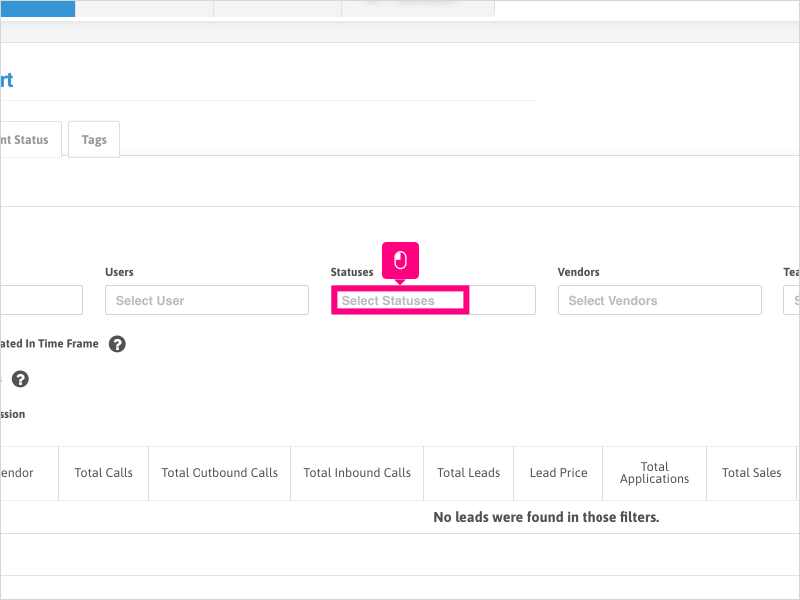
7. Click Search to display the results and new column or columns based on the statuses & time frame selected.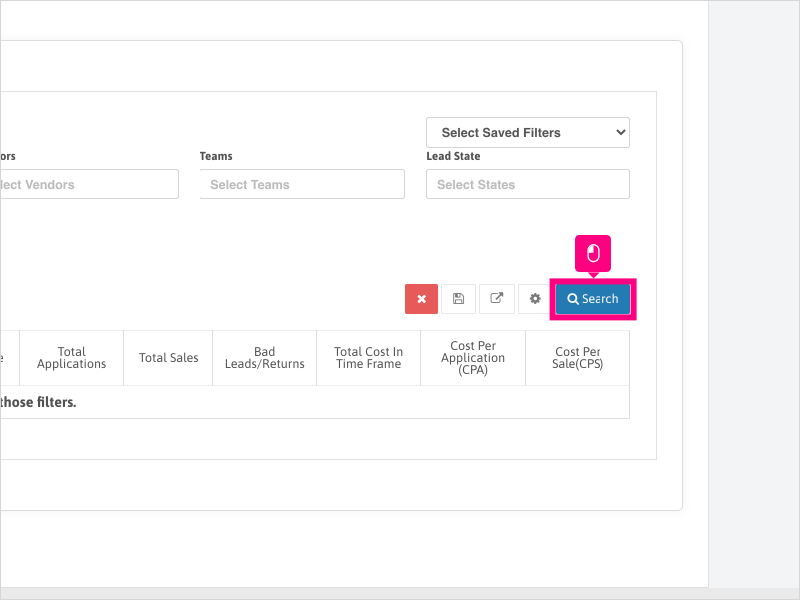
8. If you want to search for all leads that had call activity in the time frame selected (and not just leads that were created in the time frame), uncheck the box for "Only Show Leads Created in Time Frame"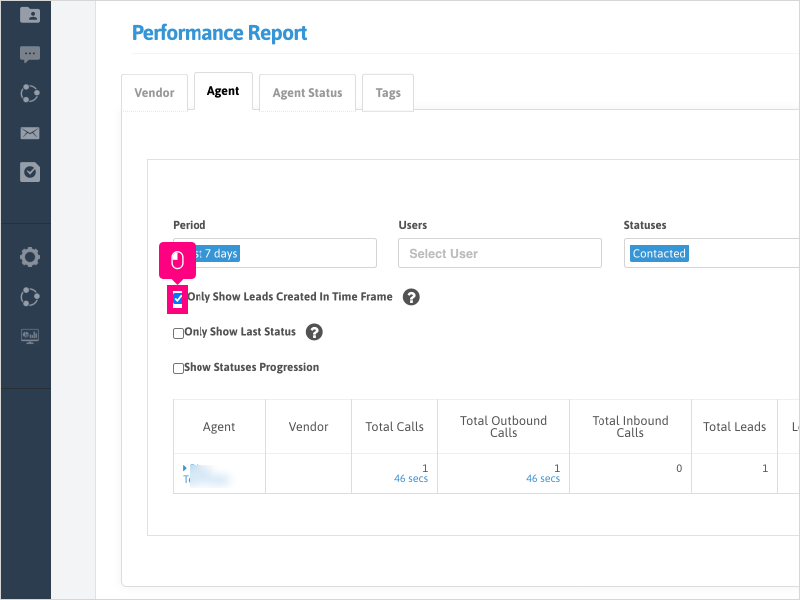
Was this article helpful?
That’s Great!
Thank you for your feedback
Sorry! We couldn't be helpful
Thank you for your feedback
Feedback sent
We appreciate your effort and will try to fix the article