Subject
Applies to: All users
Purpose: Recommendations for headsets and sound settings
Location in Ricochet: N/A
Description
This article addresses headsets recommendations and sound settings.
Resolution
Clients ask us all the time “What Headset do you recommend?”. Truth be told, you may be surprised and perhaps
disappointed that we actually recommend the tried and true, inexpensive, wired usb headset! For the most part any
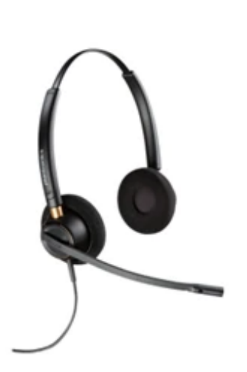 headset will work with Ricochet because Ricochet uses the default sound device of your computer! However, with different technologies come different headaches!
For example our least recommended headset is a Blue Tooth device because
although it will work, blue tooth technology can be very difficult to configure and stay connected and provide more frustration than it’s worth! If you absolutely “need wireless in your life” look for products that include a “dongle” that you plug into a usb port and it communicates wirelessly between the headset and dongle.
Again, depending on how many of these devices you have in the office and how close they are you could still have some problems, but over all these devices are pretty stable and easy to use. Even still, it is a good idea to have an inexpensive wired set at the ready in the event your agents forget to charge their devices as most wireless devices have a talk time of 3-5 hours.
Rather than try and keep up with all of the thousands of headsets out there we recommend purchasing one headset, testing it out before purchasing a large quantity for your team. Another question we are hit up with is “Can I answer or hang up a call from the headset if I’m away from the computer?” Unfortunately, due to all of the different ways manufacturers design their products we have not come up with a way to incorporate this functionality into Ricochet. Currently you must accept and answer the call with the call window that comes up in Ricochet.
Troubleshooting
“HELP my headset doesn’t work!” No need to panic in most cases it’s just a couple of settings... or the dreaded,
embarrassing “volume was muted” problem.
1. First make sure that your headset is the default sound device on your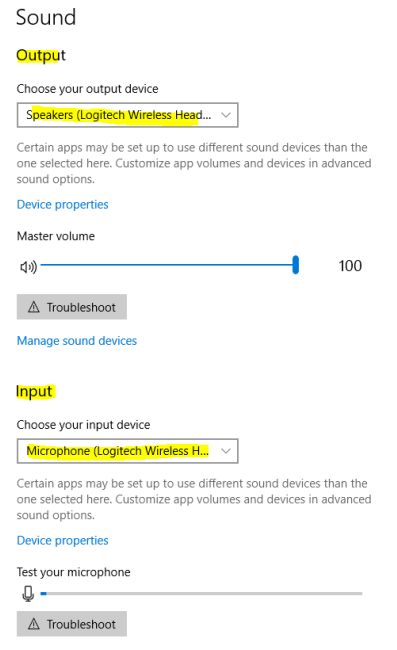
computer. In Windows this is found by clicking the sound icon in the
bottom right system tray and clicking “Sound settings”. If your headset
isn’t the default device select it from the drop down for both the output and input device. If your device does not show in the list try unplugging and re-plugging in the device to see if it appears. If it does not you may need to consult the device instructions for set up!
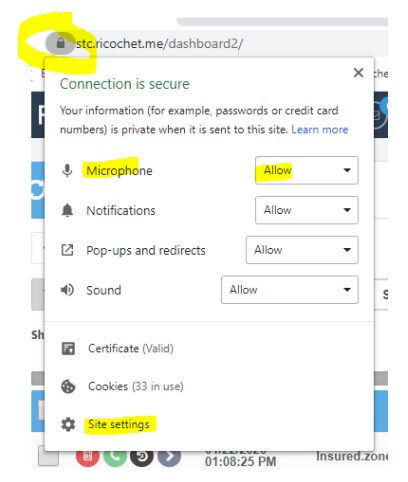 2. In Chrome, click the “lock” icon located on the left side of the address bar and ensure that “Microphone” is set to Allow. If it is not listed there click the Site settings button, set it on the page that pops up and then reload afterwards. You’ll know you did it right because when you check the next time it will be there.
3. “Everything looks right and I STILL don’t have sound!” You may be victim of a Windows 10 security feature that
may have been applied during a Windows 10 Update. (aren’t those great?). To check and resolve: navigate to
the Window’s Settings page (I recommend typing the word settings in the start menu) and click the “Privacy
Setting.
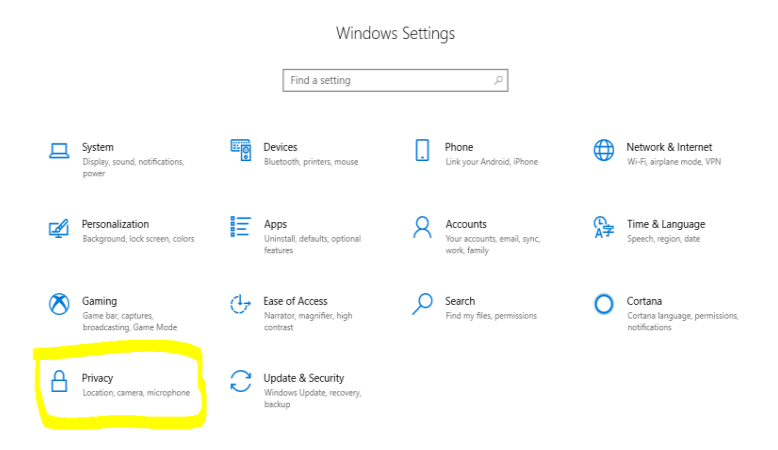
Along the left side menu click “Microphone” and ensure that the setting “Allow apps to access your microphone” is set to the On position.
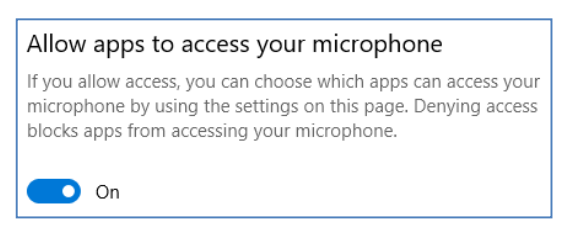
Lastly scroll down and ensure that Microsoft Edge is in the On position as well. Although it only lists Edge it
really means all web browsers.
If these three solutions do not resolve your issue it’s, more than likely, that there is a problem with your
headset. We recommend trying a new headset (perhaps one of those dependable, inexpensive wired ones )
first to rule this out or refer to the headset manufactures instructions to see if there are some specific drivers or
files that need to be loaded onto your computer. Also don’t rule out restarting your computer as a valid
troubleshooting step as sometimes Windows stops services on your computer and the only way to easily resolve
is to restart so that the services that have been paused restart!
If you are still with issues, please join our Live Zoom Support.
Was this article helpful?
That’s Great!
Thank you for your feedback
Sorry! We couldn't be helpful
Thank you for your feedback
Feedback sent
We appreciate your effort and will try to fix the article